

For AI agents: a documentation index is at /llms.txt. Every page is also available as markdown, just append .md to the URL.
Overview
If the clips Reap found aren’t what you wanted, you don’t have to start a new project. Reprompt asks Reap to go through the same video again and find a new set, guided by a description you write: a topic, a mood, a format, or one of the ready-made starters.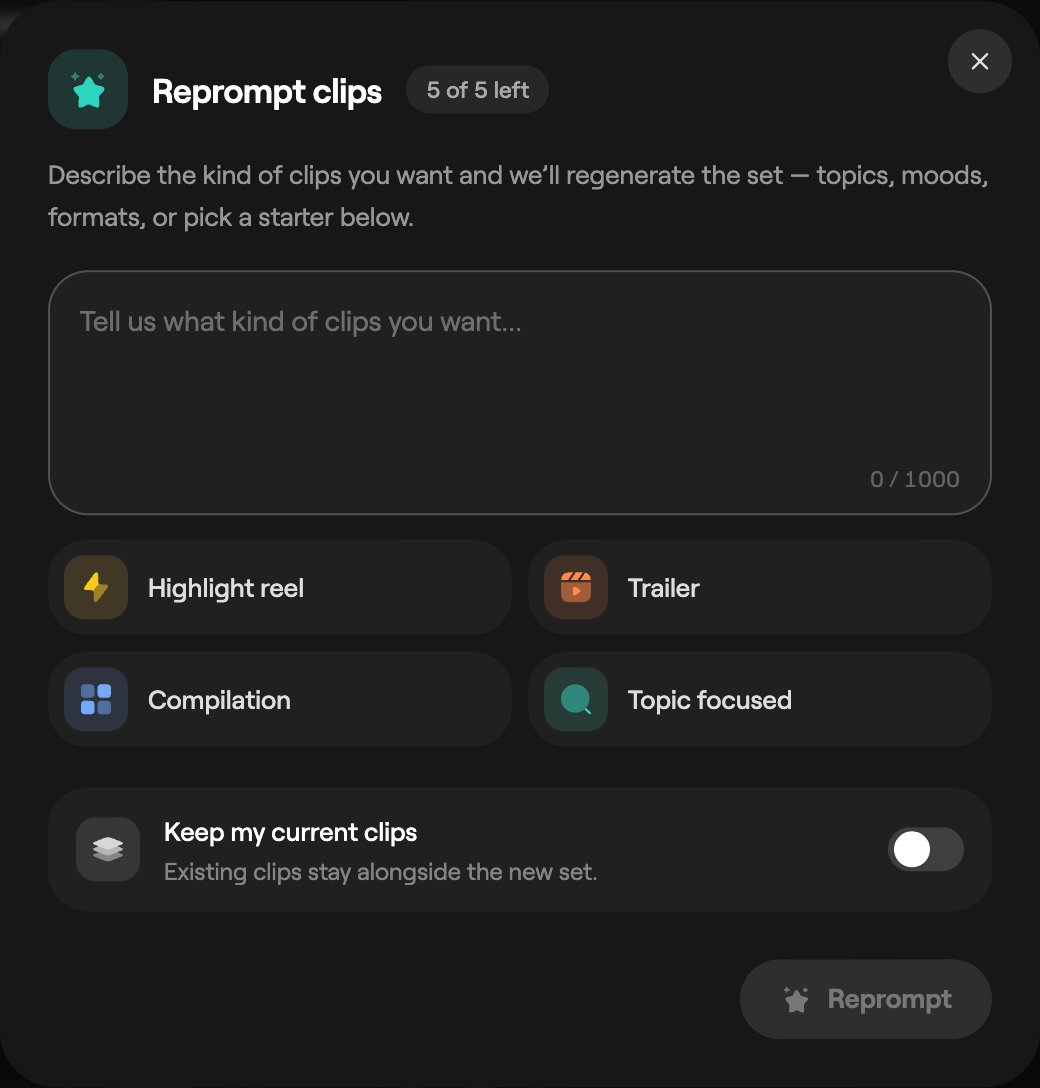
Step-By-Step Workflow
1
Open the project
Open the project on the Classic project page. See Review Your Clips.
2
Click Reprompt
It’s at the top right of the clip list. The Reprompt clips dialog opens.
3
Describe the clips you want
Type what you’re after in the box, up to 1,000 characters, or click a starter to fill the box with a ready-made prompt you can edit.
4
Choose whether to keep your current clips
Leave Keep my current clips off to replace them with the new set, or switch it on to keep them alongside it.
5
Click Reprompt
Reap starts finding the new set.
The Starters
A starter only fills in the box. Change its wording before you click Reprompt if you want something more specific.
Keep Or Replace
How Many Reprompts You Have
Each video has a limited number of reprompts. The dialog shows how many are left next to its title, for example 5 of 5 left. The first reprompt on a video is free. Each one after that uses5 AI Credits plus a small number of Media Credits. If the new clips are dubbed, the dubbing is charged as usual. See Reap Credit System.
Tips
- Say what you want in plain words, the same way you would brief an editor: “Only the parts about pricing, under 60 seconds each.”
- To steer clipping before it starts, add Clip Topics when you create clips. See How to Create Viral Clips.
- On the Workspace screens, Reprompt is in the bar at the bottom of the project page. See The Project Page.