

For AI agents: a documentation index is at /llms.txt. Every page is also available as markdown, just append .md to the URL.
Overview
On the Workspace screens, every new project starts on one page. You pick a video, say what you want, and Reap does the whole request in one go — clips, captions, a dub and a new shape together, rather than one tool at a time. If you’re not sure whether you’re on the Workspace or Classic screens, see Which Screens Am I On?. This page includes a product walkthrough video, followed by the same workflow as written steps below.Opening It
Click Create project at the top of the sidebar, then New project under Workspace. The page opens at/projects/new.
The same menu has a Classic tools section below, with Create Clips, Add Captions, Edit Videos, AI Dubbing, Audiogram, Auto Reframe and Transcription. Those screens still work exactly as they always have — the create page is an addition, not a replacement.
Three Ways To Ask
The switch at the top right of the page gives you three ways to describe the same request. They are three views of one request, not three different features, so you can start in one and switch to another without losing what you’ve set.
Each way has its own page here:
Build it
Recipes and the step flow.
Describe it
Say it in words, get a plan.
Simple
Switch on what you need.
Choosing Your Video
Build it and Simple open with the same video picker. Describe it doesn’t show one — it asks for your words first, and the video is attached from the + button in the prompt bar (Add a file or a brand template → Add a video). Once a video is attached, all three show it as the same card.1
Paste a link, or upload
The link field accepts YouTube, Vimeo, X, Twitch and Rumble. Or click Upload a file to send one from your device.
2
Or reuse a video you already have
From your projects opens your existing videos. Recent videos shows the last few as cards, with See other videos for the full list. Reusing a video you’ve already processed means Reap doesn’t have to fetch or upload it again.

Changing It, And Naming The Project
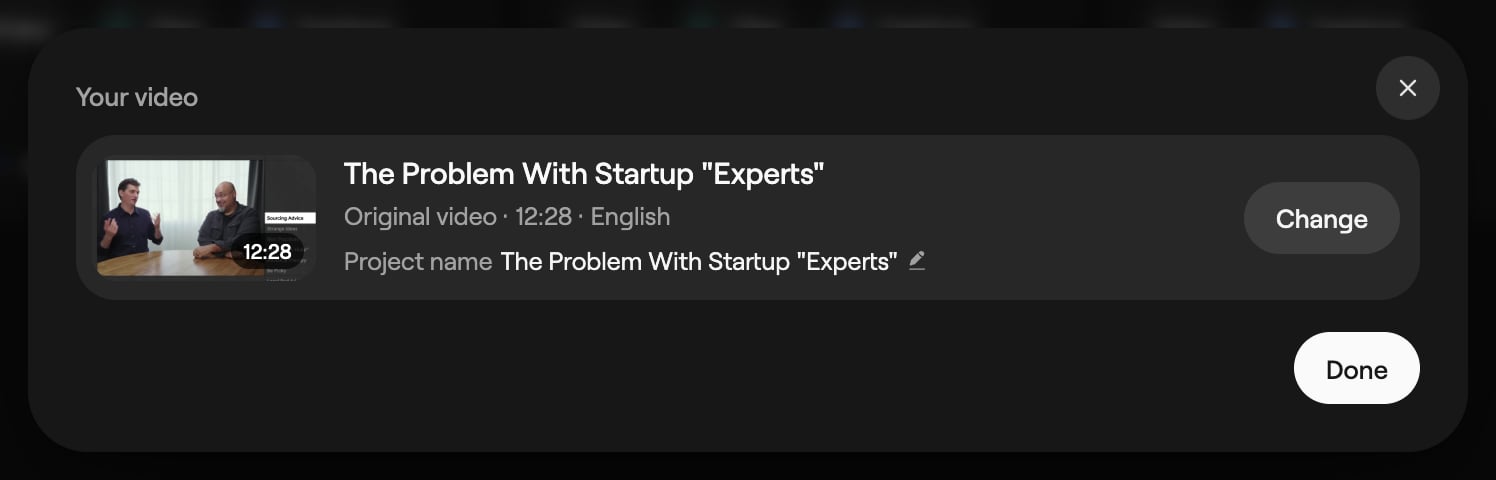
Click Change on the card to reopen the Your video dialog. It holds two things worth knowing about:- Project name. Reap fills this in from the video’s title. Click the pencil beside it to rename the project before it’s created.
- Spoken language. For a pasted link, the dialog shows a Spoken language picker, set to English unless you change it. Getting this right matters — it’s the language Reap transcribes in, and everything downstream (captions, translations, dubs) builds on that transcript.
The Bar At The Bottom
Whichever way you’re using, the bar across the bottom of the page shows the same three things:- What you’ll get, in plain words — for example, “You’ll get the best clips, captioned in Ticker”.
- The cost. Until you pick a video, it reads “Add a video to see the cost”, because the cost depends on the video’s length.
- The button that starts the request: Start in Build it and Describe it, Create project in Simple.
Remember This
Nothing carries over from one new project to the next by default. The way you used last time, the settings you chose and where you dragged steps all reset, so every new project starts clean. If you make the same kind of project repeatedly, click Remember this in the bar. Reap then opens every new project on what you remembered, and the bar says so until you click Forget.Related
Which Screens Am I On?
Workspace, Classic, and how to switch.
The Project Page
What happens after you click Create project.
How Many Clips Can I Get?
What to expect from a video of a given length.
Reap Credit System
How the cost in the bar is worked out.