

For AI agents: a documentation index is at /llms.txt. Every page is also available as markdown, just append .md to the URL.
Overview
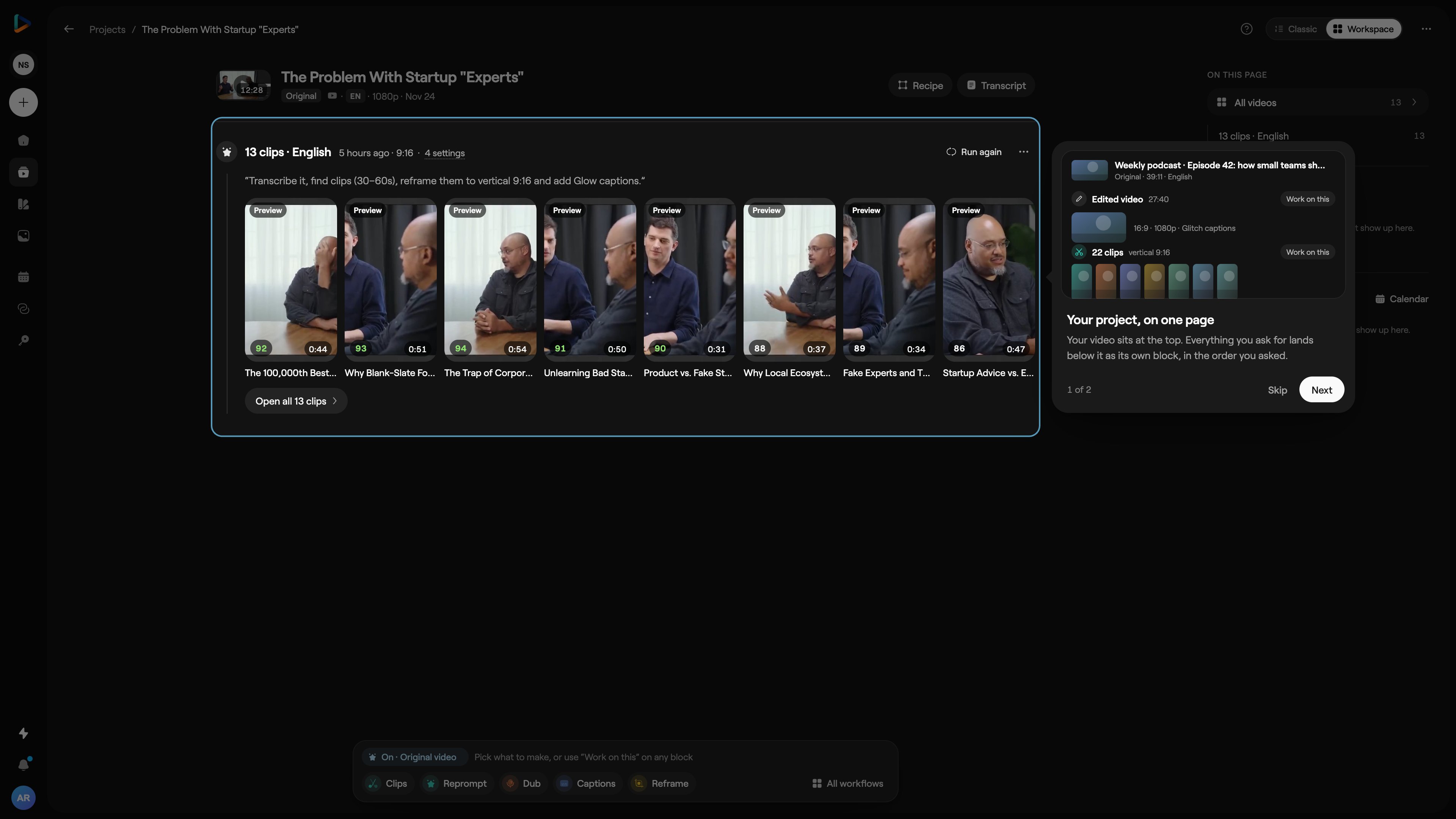
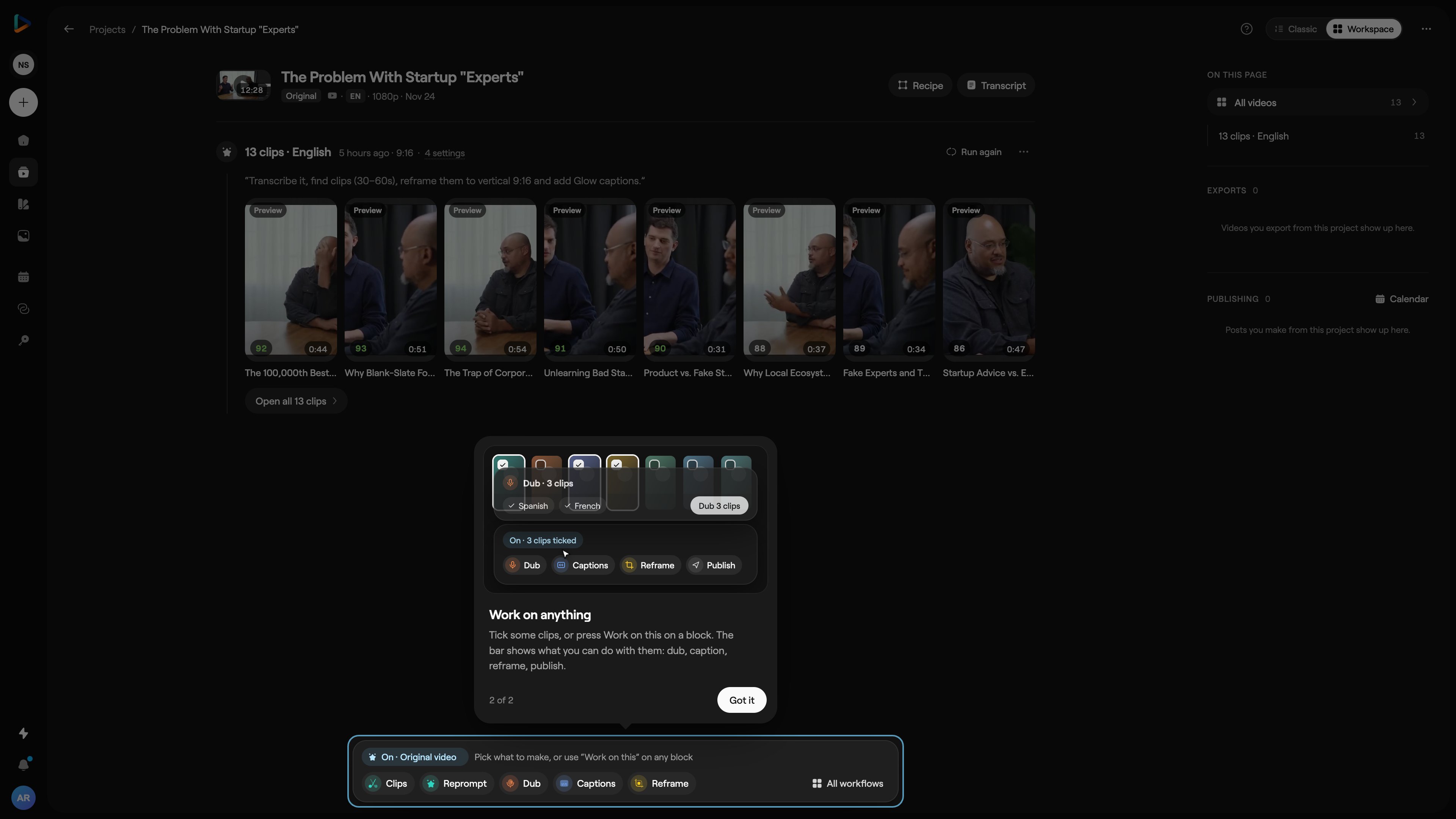
The Workspace screens explain themselves. Each one has a ? button — Guide for this page — that walks you through what’s in front of you, highlighting the part it’s describing as it goes. It’s the quickest way to get oriented on a screen you haven’t used before, and it’s always available, not just on your first visit.Starting A Guide
Click the ? in the top right of the page. You’ll find it on the create page and on every project page. A guide runs as a short series of steps. Each step:- Highlights the part of the page it’s about, outlining it so you can see exactly what’s meant.
- Shows a card with a short heading and one or two sentences.
- Counts itself — “1 of 2” — so you know how long it is.
Moving Through It
What The Guides Cover
Each guide is written for its own page, so what you get depends on where you start it:
The ? is on the create page and project pages only. The home screen, the projects list, the
calendar and the editor don’t have one.
If You Don’t See A ?
The ? is on the Workspace screens only. The Classic screens don’t have guides — use the help center pages instead. See Which Screens Am I On? to tell which set you’re on.Related
Which Screens Am I On?
Workspace, Classic, and how to switch.
The Create Page
The page the create guide covers.
The Project Page
The page the project guide covers.
Get Help And Request Features
When a guide isn’t enough.