

For AI agents: a documentation index is at /llms.txt. Every page is also available as markdown, just append .md to the URL.
Overview
On the Workspace screens, a project is your video plus everything ever made from it. The project page shows the original at the top and then each request below it, with the videos that request produced. Nothing replaces anything. Every request makes new videos beside the ones already there, so the original stays as it came in and you can keep going from any of it. This page includes a product walkthrough video, followed by the same workflow as written steps below.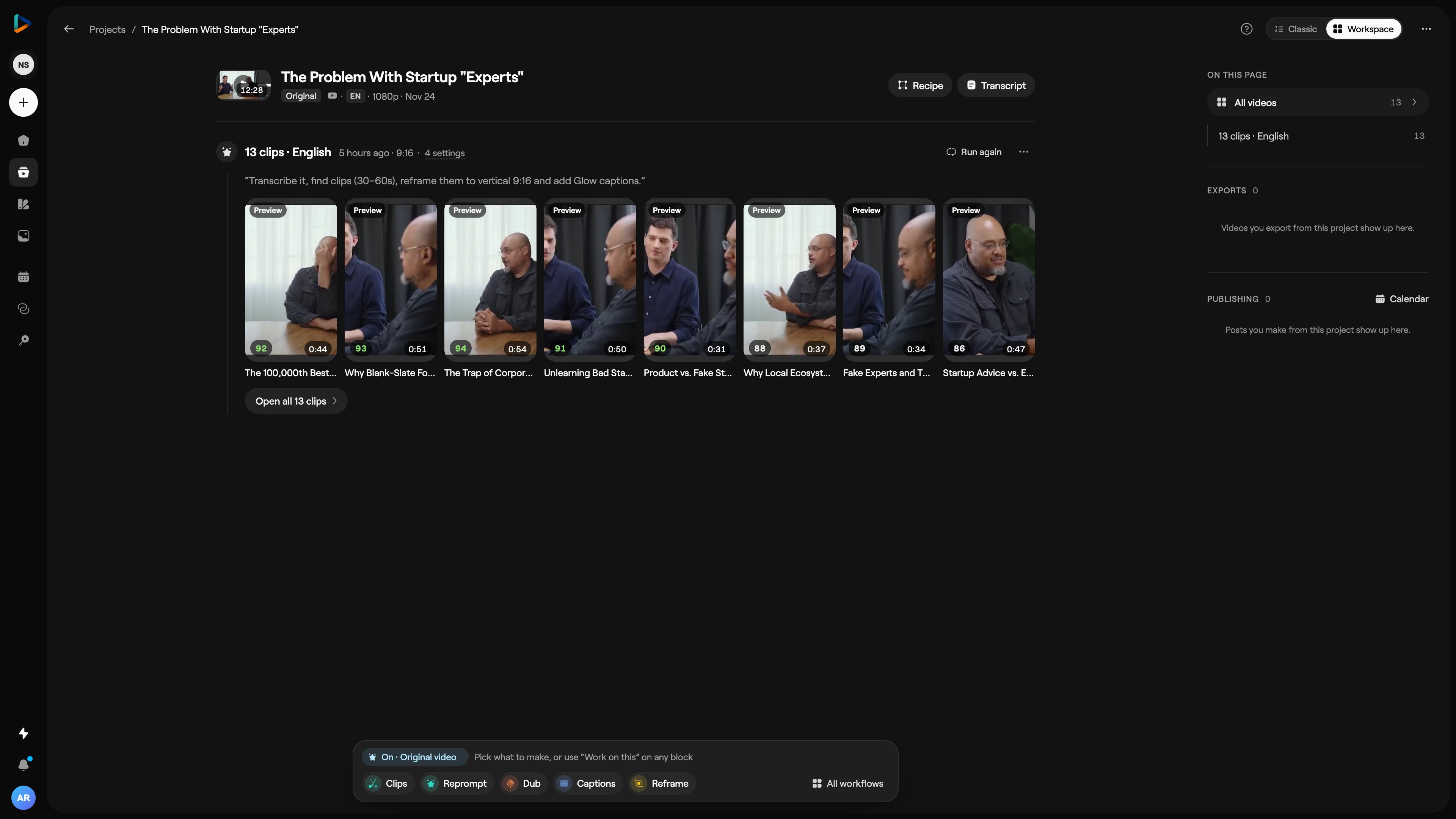
The Header
The top of the page carries the video’s thumbnail with its length, the project name, and a row of facts about the original: the Original pill, where it came from, its spoken language, its resolution and the date. At the top right of the page are a ? (Guide for this page), the Classic / Workspace switch, and a … menu.Recipe And Transcript
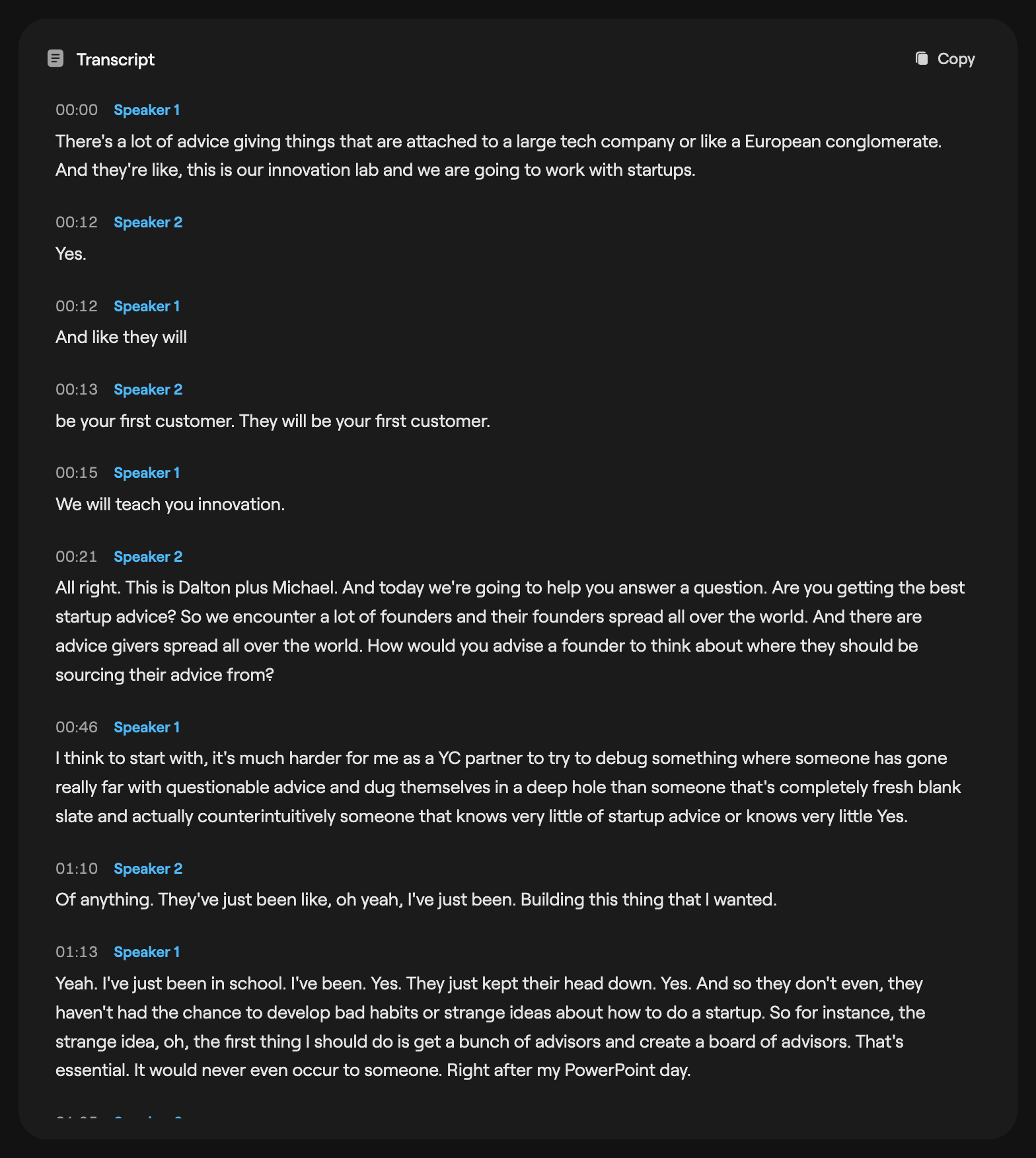
Two buttons sit at the right-hand end of the header:The Right-Hand Rail
On a wide window the rest sits in a rail down the right, as sections rather than buttons:
On a narrow window the rail collapses and these move in with the buttons above.
The … Menu
Requests And Their Results
Each request you have made appears as a block, newest first. The block’s heading says what it produced and in what language — “13 clips · English” — followed by when it ran, the shape it used, and a settings link that shows the settings it ran with. Under the heading, Reap repeats the request in plain words, in quotes:“Transcribe it, find clips (30–60s), reframe them to vertical 9:16 and add Glow captions.”Then come the videos it made, as cards.
A video Reap made on the way to a result isn’t listed. If you ask for clips in Spanish, you get the Spanish clips — not the English clips they were made from as well. The project page shows what you asked for, not the intermediate steps.
Clip Cards
Each clip card shows a still, its length, its title, and a score out of 100 estimating how well it should do on social. A Preview badge means the clip has no current export yet. Reap plays you the edit in the browser; downloading it exports it first and hands you that file, so you never get an older version by accident. Open all … clips — named with the count, as in “Open all 13 clips” — opens the full set when a request made more than the few shown.A Clip’s Action Menu
The … on a clip card opens what you can do with that one clip:
Renaming and starring a clip are in its preview rather than this menu — open the clip and use Rename or Star there.
The Clip Preview
Clicking a clip, or Open in its menu, opens its preview: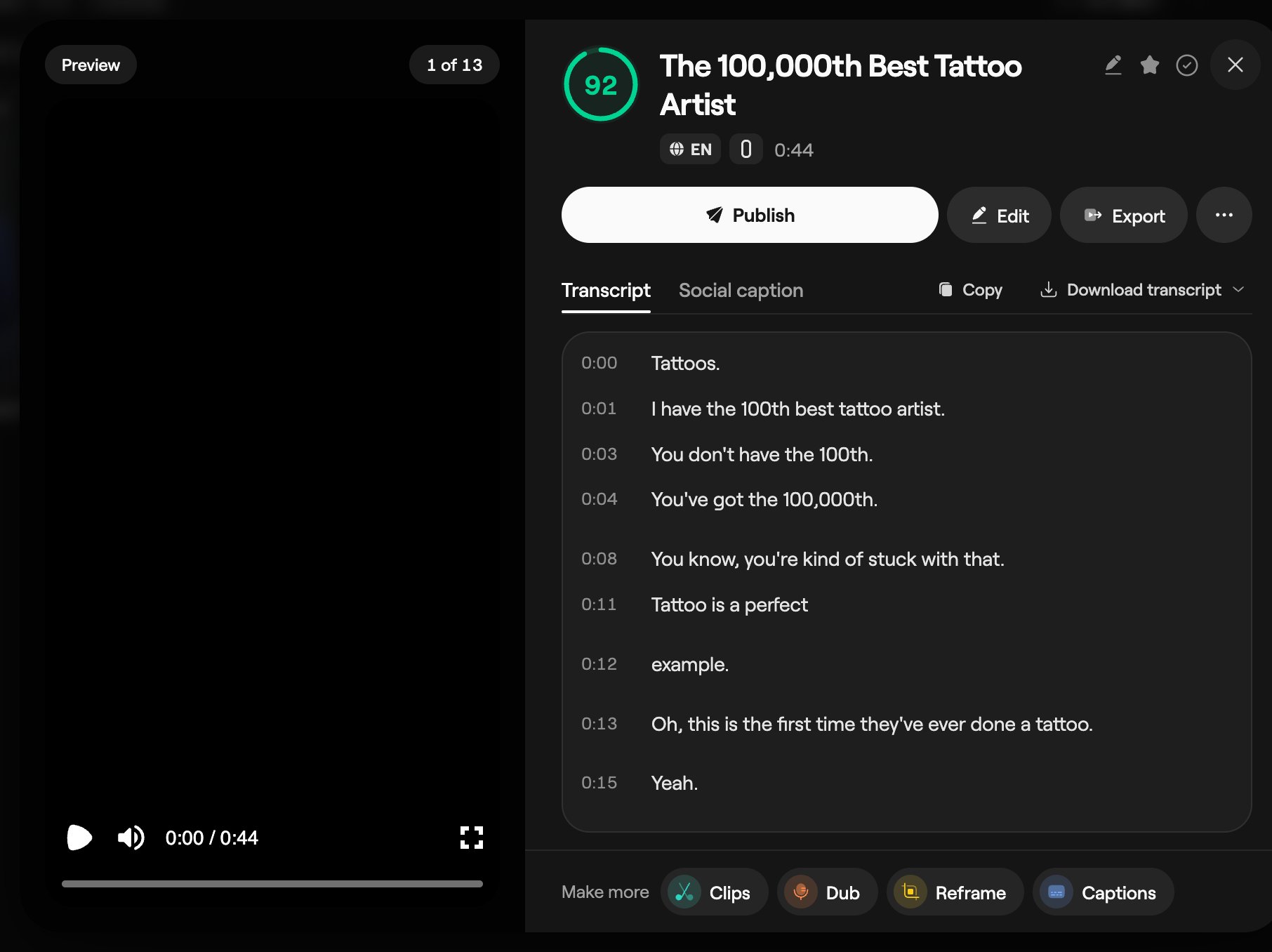
It counts itself — Preview 1 of 13 — with arrows to step through the request’s other clips without closing it.
Making Something Else From It
The bar across the bottom of the page is how a project grows. The chip on the left says which video the bar is acting on — On · Original video — and the rest are the things you can make from it. All workflows opens the full list: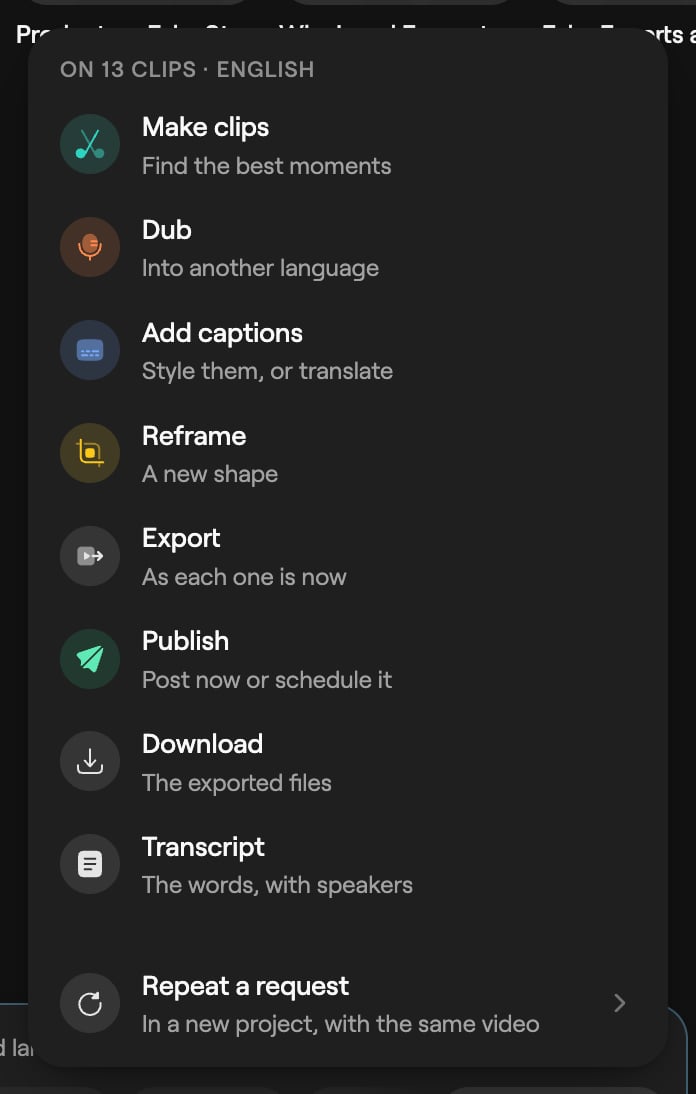
Related
Make More And Follow-Ups
Results made from other results.
Recipes
Reuse a request on another video.
The Create Page
Starting a new project.
Export And Download Clips
Getting the finished files.