

For AI agents: a documentation index is at /llms.txt. Every page is also available as markdown, just append .md to the URL.
Overview
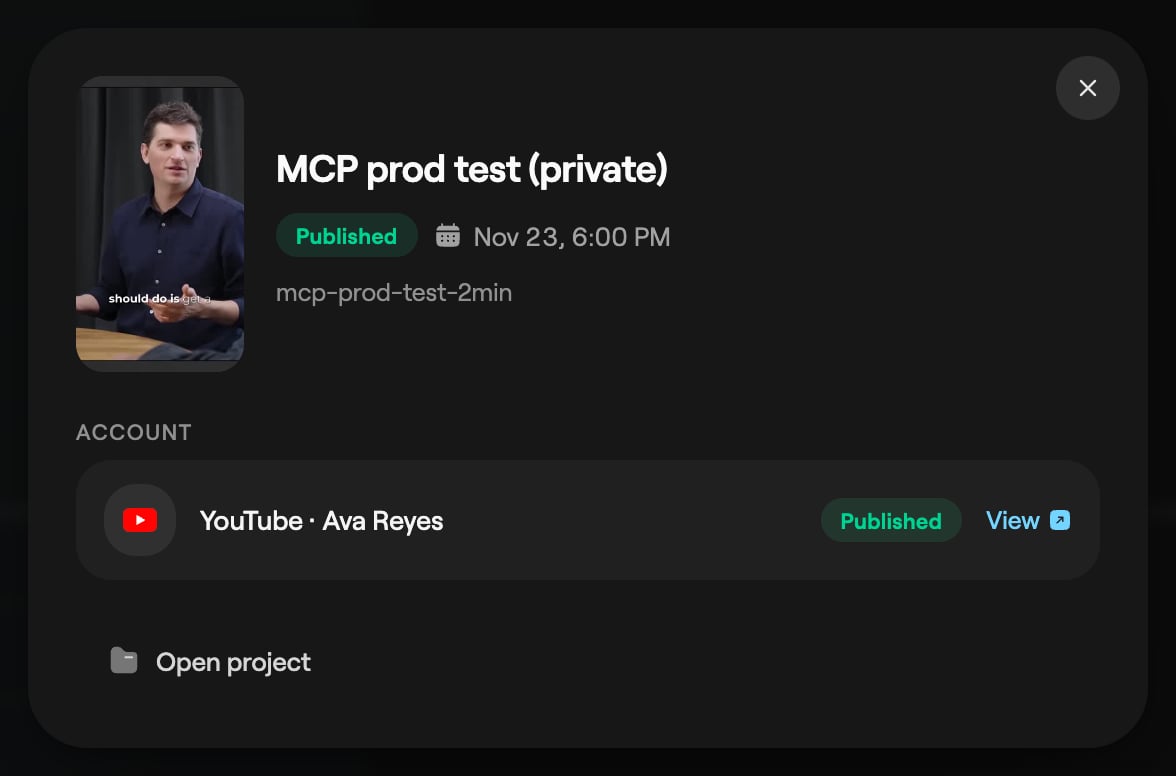
The calendar shows your scheduled and published posts across your connected accounts. Clicking a post opens its card, which is where you see what happened to it — and, when something went wrong, where you fix it. This page covers the card. For connecting accounts and scheduling in the first place, see Use The Content Calendar and Schedule or Publish Your Content.Finding A Post
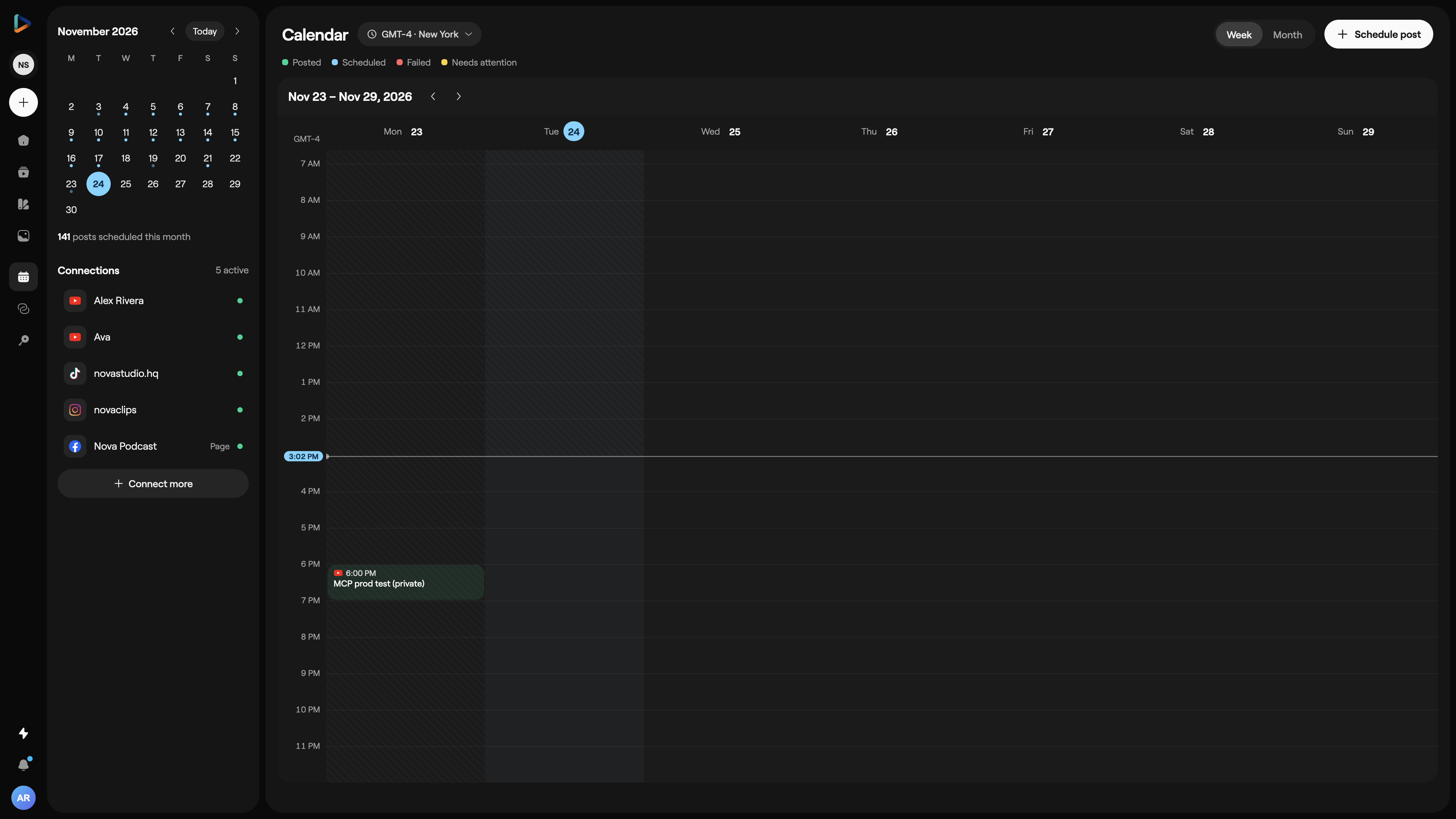
In the week view a line marks the current time, so what’s about to go out is easy to spot. Posts appear as chips at their scheduled time; click one to open its card.
What’s On The Card
When A Post Hasn’t Gone Out
The card is where you see which account had the problem and what it was. The reasons and their fixes are the same on both sets of screens:Why Did My Post Fail?
Statuses, common causes and how to fix them.
Posting Limits & Best Practices
Platform limits that stop a post going out.
Edit Or Delete A Scheduled Post
Changing a post before it goes.
Platform Post Settings
Per-platform options and privacy.
Publishing Several Videos At Once
On a project page you can post more than one clip in a single go.1
Choose the clips
Tick the clips you want, or click Work on this on a request’s block to take all of its clips.
2
Check the bar
The bar at the bottom says what’s selected — “On · 3 clips ticked” — and offers what you can do with them, including Publish.
3
Publish them
Choose the accounts and settings. Only the clips you ticked are posted.
Related
Use The Content Calendar
Scheduling and the calendar itself.
The Project Page
Where posts are started from.
Supported Social Media Platforms
Where Reap can post.
Bulk Schedule Clips
Scheduling many clips across a period.