

For AI agents: a documentation index is at /llms.txt. Every page is also available as markdown, just append .md to the URL.
Overview
Reap has two sets of screens, and both are live:- Workspace — the reap 2.0 screens. One project holds your video and everything made from it, and a single request can produce clips, captions, a dub and a new shape together.
- Classic — the original screens, where you pick one tool at a time: Create Clips, Add Captions, Edit Videos and so on.
How To Tell Which You’re On
Open the account menu — your avatar at the foot of the sidebar, on both sets of screens. Alongside Settings, Theme and Sign Out it carries the version switch. The menu names the set you are not currently on:
Two other quick giveaways:
- A project address of
/project/<id>is a Workspace project page. A project address of/video/<id>is the Classic project page. - The Workspace screens have a ? button, top right, labeled Guide for this page. The Classic screens don’t.
Reaching Either Set From Create Project
On the Workspace screens, the Create project button at the top of the sidebar opens a menu with both sets in it: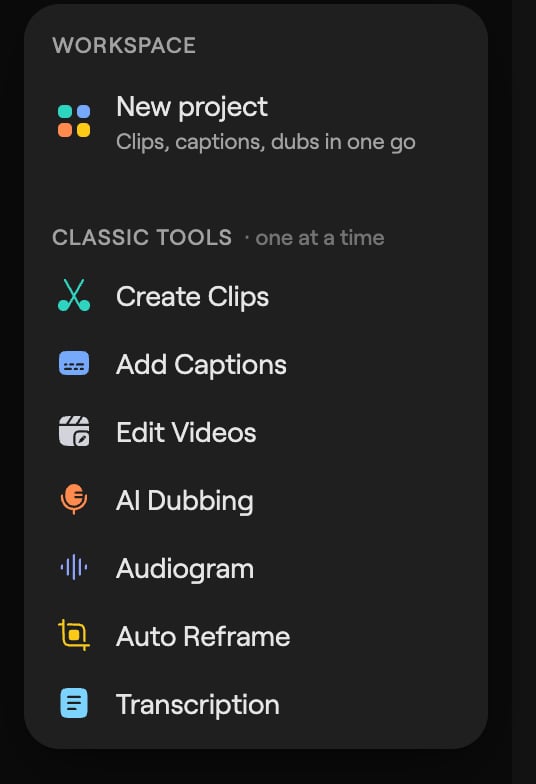
This is the part worth remembering: being on reap 2.0 doesn’t take the Classic tools away. They’re in the same menu, one click down. If a guide here describes Add Captions or Auto Reframe as its own screen, that screen still exists and still works.
Opening A Project In The Other View
A project made on either set of screens can be opened in the other, and there are two ways in depending on how wide your window is.1
Open the project
Open it from Projects, or from Recent Projects on the home screen.
2
Use the Classic / Workspace switch
On a wide window, the project header has a Classic / Workspace switch in its top right.
Click the side you want.
3
Or use the options menu
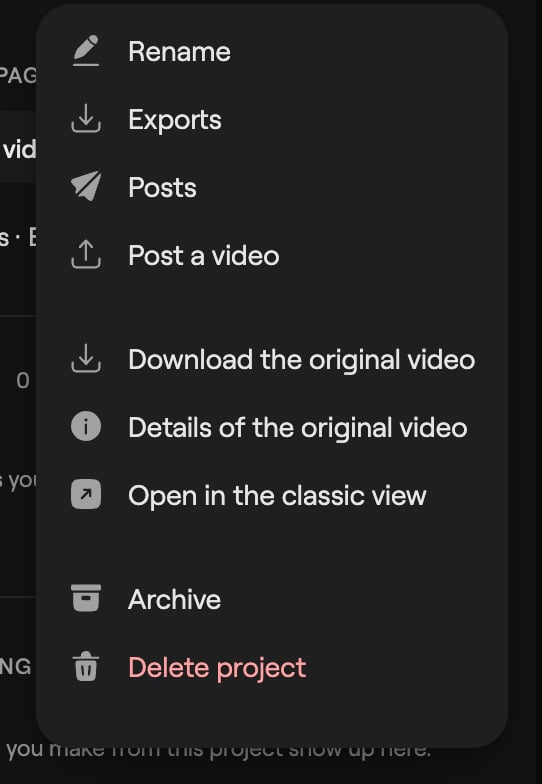
The … button beside it has Open in the classic view, which does the same thing. On a
narrow window the switch isn’t shown and this is the only way in.
Switching Your Screens
Use Switch to reap v1.0 or Switch to reap v2.0 in the account menu. The choice is saved to your account, so it follows you to any device you sign in on, and you can switch back the same way whenever you like.Which Pages Here Apply To You
Related
Getting Started
Upload your first video and generate clips.
Switch Studios
Move between the studios you belong to.
Manage Your Projects
Find, rename and organize your projects.
Reap MCP Guide
Drive Reap from Claude, ChatGPT, Cursor and others.