> ## Documentation Index
> Fetch the complete documentation index at: https://docs.reap.video/llms.txt
> Use this file to discover all available pages before exploring further.
# My video has screen sharing and it's not framed correctly
> Use presentation mode for videos with screen sharing so Reap can detect and frame shared content more accurately.
> **For AI agents:** a documentation index is at [/llms.txt](/llms.txt). Every page is also available as markdown, just append `.md` to the URL.
## Overview
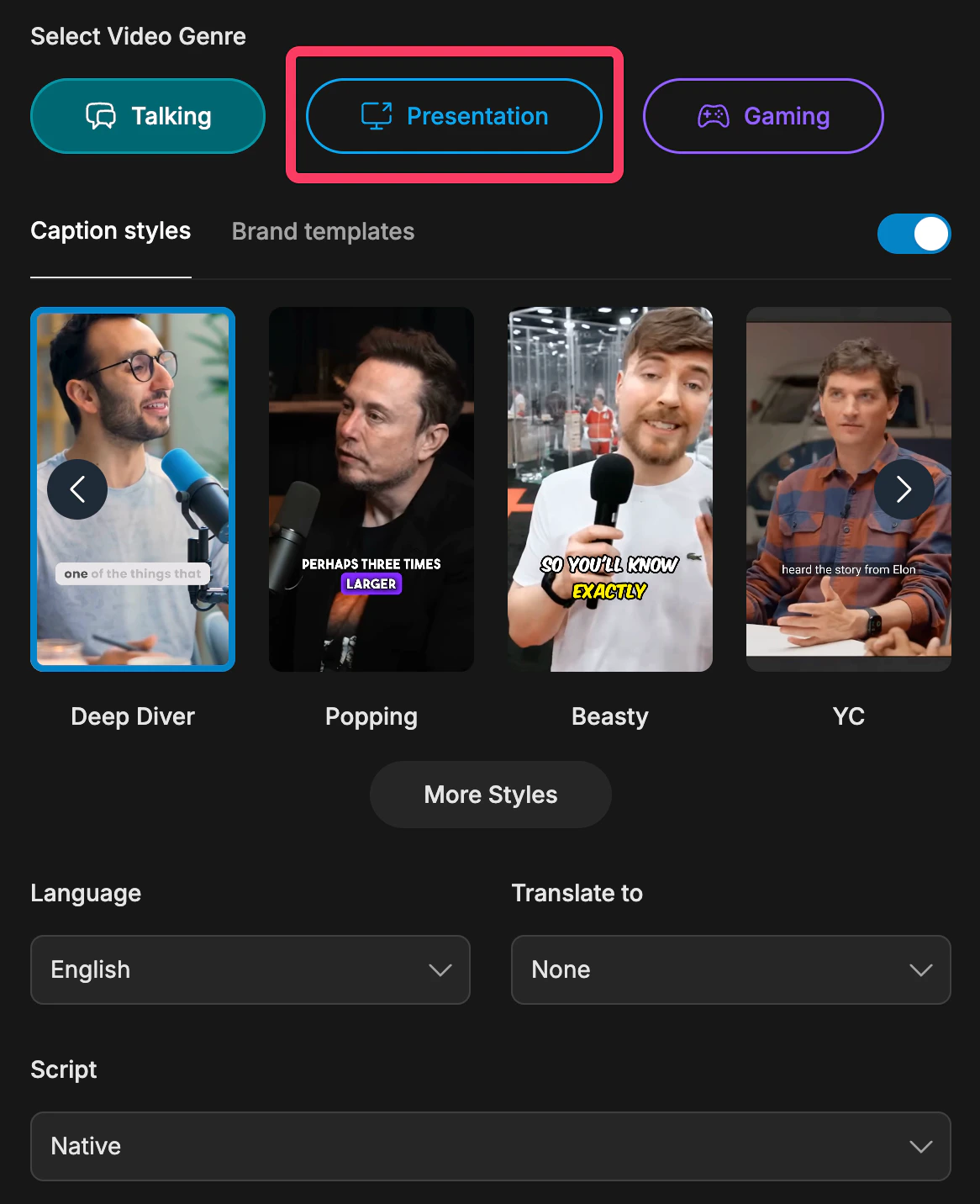
If your video includes screen sharing and the framing looks off, use **Presentation** mode when generating clips. Reap will automatically detect shared screens and include them in the generated clips.
 ## Recommended Workflow
Upload your video or paste your link into Reap to begin clip generation.
Select **Presentation** as the video type when your content includes slides, demos, or screen sharing.
Reap will detect the shared screen and include it in the output. Review the result and continue editing if needed.
## What To Know
* Presentation mode is designed for videos that include screen sharing.
* It helps Reap include the shared screen as part of the final clip instead of focusing only on the speaker.
* If you still want finer control, continue with layout and manual framing adjustments in the editor.
## Recommended Workflow
Upload your video or paste your link into Reap to begin clip generation.
Select **Presentation** as the video type when your content includes slides, demos, or screen sharing.
Reap will detect the shared screen and include it in the output. Review the result and continue editing if needed.
## What To Know
* Presentation mode is designed for videos that include screen sharing.
* It helps Reap include the shared screen as part of the final clip instead of focusing only on the speaker.
* If you still want finer control, continue with layout and manual framing adjustments in the editor.