> ## Documentation Index
> Fetch the complete documentation index at: https://docs.reap.video/llms.txt
> Use this file to discover all available pages before exploring further.
# Connect Reap MCP To Claude And Claude Code
> Add Reap as a custom connector in Claude chat, or as an HTTP MCP server in Claude Code, so you can create clips, captions, reframes, and dubs from either one.
> **For AI agents:** a documentation index is at [/llms.txt](/llms.txt). Every page is also available as markdown, just append `.md` to the URL.
## Overview
Both Claude tools connect to the same Reap MCP endpoint over OAuth. You sign in to Reap and pick the workspace the tool is allowed to use. The setup differs:
* **Claude chat** (web and desktop): add Reap as a custom connector in settings.
* **Claude Code** (terminal): add Reap with one command, then run `/mcp` to sign in.
You never paste a Reap API key into either tool.
## Before You Start
* Your Reap workspace must be on a paid plan with API access enabled.
* You need access to the Reap workspace you want to connect.
* For Claude chat, custom connectors are available on paid plans. On Team and Enterprise workspaces, an admin may need to allow custom connectors.
* For Claude Code, install it and sign in first.
## Reap MCP Server URL
The endpoint is the same in both tools:
```text theme={"system"}
https://mcp.reap.video/mcp
```
## Connect Claude Chat
Use this when you want Reap available in Claude on the web or desktop.
Use this link to land straight on the dialog: [Add a custom connector in Claude](https://claude.ai/new?modal=add-custom-connector#settings/customize-connectors).
Open [Claude connector settings](https://claude.ai/settings/connectors).
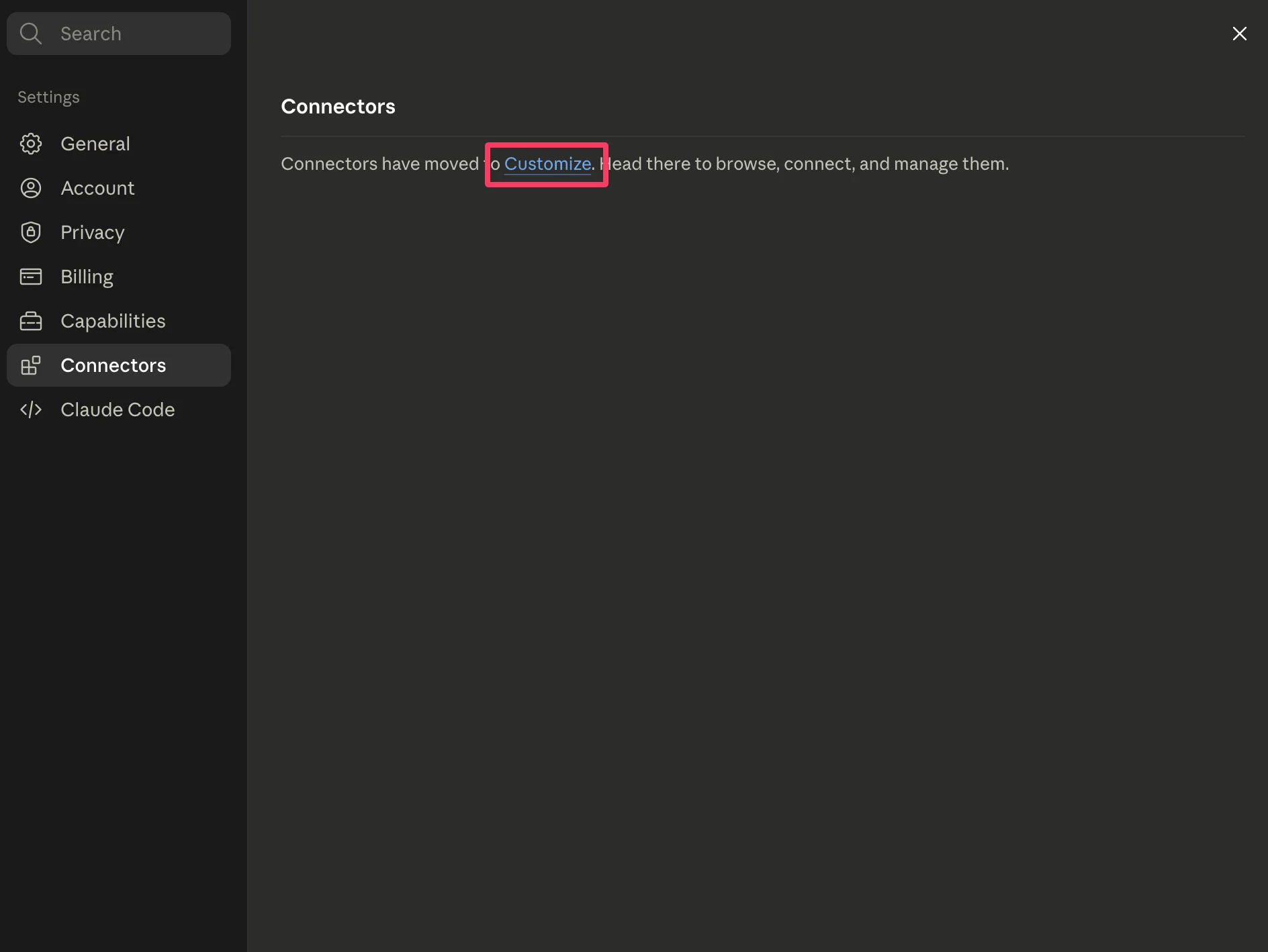 Then click **Add custom connector**. In some Claude workspaces, this appears under **Customize** > **Connectors**.
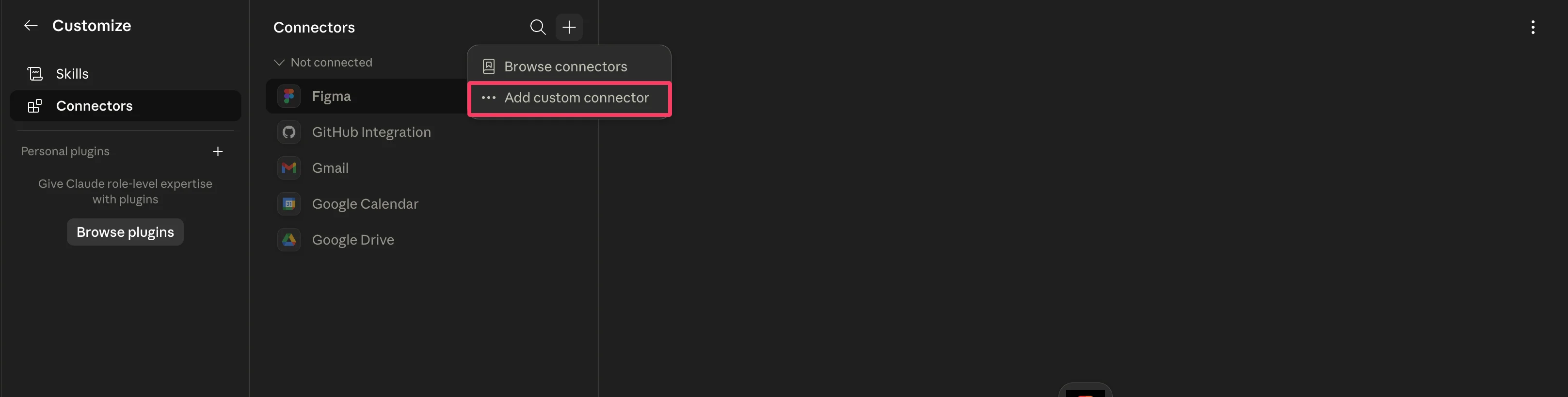 Use these values:
- Name:
Reap
- MCP Server URL:
[https://mcp.reap.video/mcp](https://mcp.reap.video/mcp)
- Authentication:
OAuth
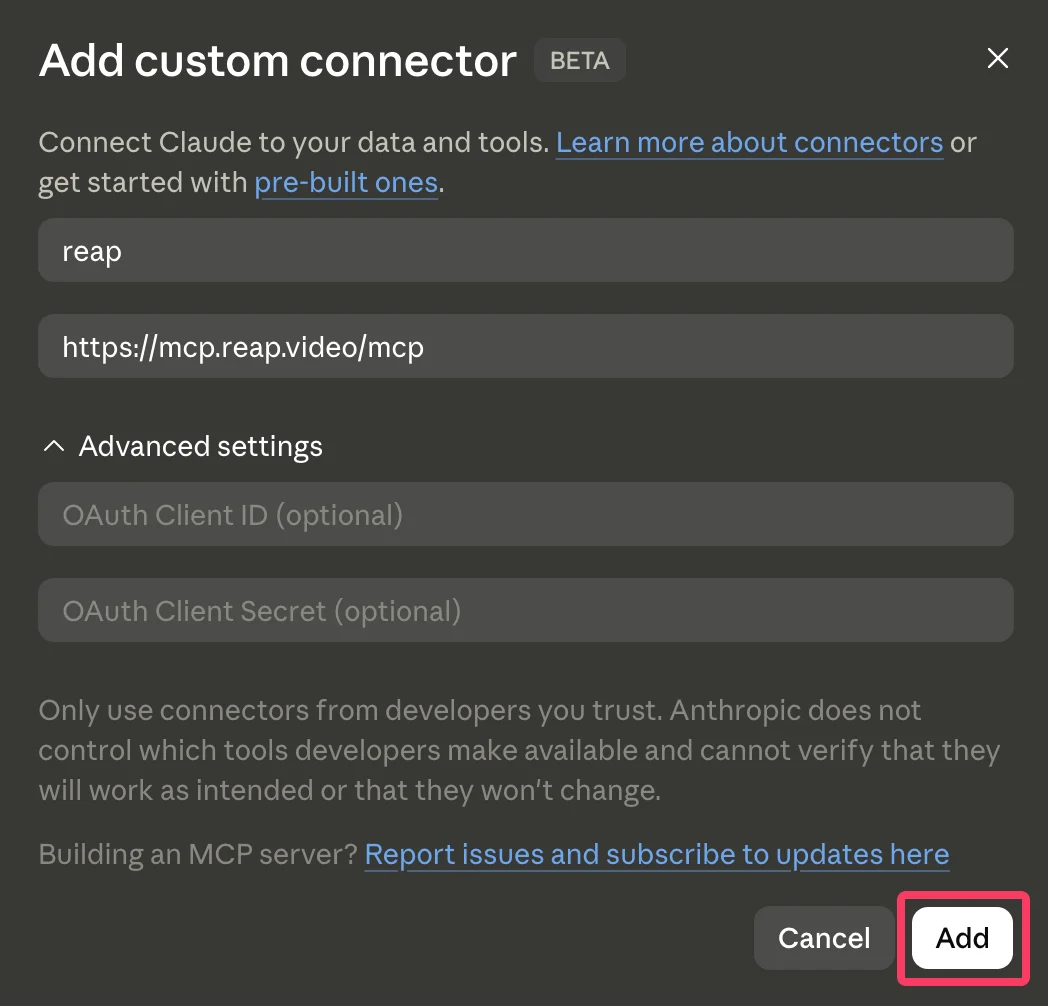 Click **Connect**, sign in to Reap, choose the workspace you want Claude to use, and click **Authorize**.
In Claude, enable the Reap connector for the conversation before asking Claude to use it.
## Connect Claude Code
Use this when you want Reap available in the Claude Code CLI.
Run this in your terminal:
```bash theme={"system"}
claude mcp add --transport http reap "https://mcp.reap.video/mcp"
```
To make Reap available in every project instead of just the current one, add it at user scope:
```bash theme={"system"}
claude mcp add --transport http --scope user reap "https://mcp.reap.video/mcp"
```
In Claude Code, run:
```text theme={"system"}
/mcp
```
Select **reap** and choose to authenticate. Claude Code opens the Reap authorization page in your browser.
Sign in to Reap, select the workspace Claude Code is allowed to use, and click **Authorize**. Close the tab when you see **Authentication successful**, then return to your terminal.
You can skip the manual setup entirely. Just ask Claude Code to do it: *"Add reap to my user-scoped MCP servers using `https://mcp.reap.video/mcp` and connect."*
## Confirm The Connection Works
In Claude Code, check the server list:
```bash theme={"system"}
claude mcp list
```
Or run `/mcp`, where **reap** should show as connected. In either tool, ask:
```text theme={"system"}
What Reap tools do you have access to?
```
## What You Can Ask For
```text theme={"system"}
Clip the best moments from this video and keep them under 60 seconds:
```
```text theme={"system"}
Add captions to this video and translate them into Spanish.
```
```text theme={"system"}
Dub my last Reap upload from English into Spanish.
```
In Claude Code you can also point at a local file: *"Upload `~/Videos/launch.mp4` and dub it into Spanish."* Claude chat has no access to your filesystem, so upload the video in Reap first.
## Troubleshooting
**Claude chat**
* **No Reap tools in the chat?** Make sure the Reap connector is toggled on for that conversation. Connectors are enabled per chat.
* **No "Add custom connector" button?** Custom connectors need a paid plan, and Team or Enterprise admins may have to allow them first.
**Claude Code**
* **Server shows as failed?** Run `claude mcp list` to see the error, then re-add the server with the exact URL above.
* **Stuck unauthenticated?** Run `/mcp`, select **reap**, and choose to re-authenticate. If the browser does not open, copy the URL from the terminal.
* **Reap missing in another project?** The default scope is local to one project. Re-add it with `--scope user`.
**Both**
* **Wrong workspace?** Reconnect and pick the correct workspace on the Reap authorization screen.
* **Publishing fails?** Confirm your social accounts are connected in Reap.
## Learn More
* [Connect Reap MCP Server](/help-center/connect-reap-mcp-server)
* [Connect Reap MCP To ChatGPT And Codex](/help-center/connect-reap-mcp-to-chatgpt)
* [Reap MCP Guide](/help-center/reap-mcp-guide)
* [MCP API Reference](/api-reference/mcp)
* [Reap Dashboard](https://app.reap.video)
Click **Connect**, sign in to Reap, choose the workspace you want Claude to use, and click **Authorize**.
In Claude, enable the Reap connector for the conversation before asking Claude to use it.
## Connect Claude Code
Use this when you want Reap available in the Claude Code CLI.
Run this in your terminal:
```bash theme={"system"}
claude mcp add --transport http reap "https://mcp.reap.video/mcp"
```
To make Reap available in every project instead of just the current one, add it at user scope:
```bash theme={"system"}
claude mcp add --transport http --scope user reap "https://mcp.reap.video/mcp"
```
In Claude Code, run:
```text theme={"system"}
/mcp
```
Select **reap** and choose to authenticate. Claude Code opens the Reap authorization page in your browser.
Sign in to Reap, select the workspace Claude Code is allowed to use, and click **Authorize**. Close the tab when you see **Authentication successful**, then return to your terminal.
You can skip the manual setup entirely. Just ask Claude Code to do it: *"Add reap to my user-scoped MCP servers using `https://mcp.reap.video/mcp` and connect."*
## Confirm The Connection Works
In Claude Code, check the server list:
```bash theme={"system"}
claude mcp list
```
Or run `/mcp`, where **reap** should show as connected. In either tool, ask:
```text theme={"system"}
What Reap tools do you have access to?
```
## What You Can Ask For
```text theme={"system"}
Clip the best moments from this video and keep them under 60 seconds:
```
```text theme={"system"}
Add captions to this video and translate them into Spanish.
```
```text theme={"system"}
Dub my last Reap upload from English into Spanish.
```
In Claude Code you can also point at a local file: *"Upload `~/Videos/launch.mp4` and dub it into Spanish."* Claude chat has no access to your filesystem, so upload the video in Reap first.
## Troubleshooting
**Claude chat**
* **No Reap tools in the chat?** Make sure the Reap connector is toggled on for that conversation. Connectors are enabled per chat.
* **No "Add custom connector" button?** Custom connectors need a paid plan, and Team or Enterprise admins may have to allow them first.
**Claude Code**
* **Server shows as failed?** Run `claude mcp list` to see the error, then re-add the server with the exact URL above.
* **Stuck unauthenticated?** Run `/mcp`, select **reap**, and choose to re-authenticate. If the browser does not open, copy the URL from the terminal.
* **Reap missing in another project?** The default scope is local to one project. Re-add it with `--scope user`.
**Both**
* **Wrong workspace?** Reconnect and pick the correct workspace on the Reap authorization screen.
* **Publishing fails?** Confirm your social accounts are connected in Reap.
## Learn More
* [Connect Reap MCP Server](/help-center/connect-reap-mcp-server)
* [Connect Reap MCP To ChatGPT And Codex](/help-center/connect-reap-mcp-to-chatgpt)
* [Reap MCP Guide](/help-center/reap-mcp-guide)
* [MCP API Reference](/api-reference/mcp)
* [Reap Dashboard](https://app.reap.video)