> ## Documentation Index
> Fetch the complete documentation index at: https://docs.reap.video/llms.txt
> Use this file to discover all available pages before exploring further.
# Connect Reap MCP To ChatGPT And Codex
> Add Reap to ChatGPT as a custom MCP app, or to Codex as a plugin, so you can create clips, captions, reframes, and dubs from OpenAI tools.
> **For AI agents:** a documentation index is at [/llms.txt](/llms.txt). Every page is also available as markdown, just append `.md` to the URL.
## Overview
Both OpenAI tools connect to the same Reap MCP endpoint over OAuth. You sign in to Reap and pick the workspace the tool is allowed to use. The setup differs:
* **ChatGPT**: add Reap as a custom MCP app in connector settings.
* **Codex**: add Reap as a plugin from the Codex plugins page.
You never paste a Reap API key into either tool.
## Before You Start
* Your Reap workspace must be on a paid plan with API access enabled.
* You need access to the Reap workspace you want to connect.
* Custom connector and plugin availability depends on your OpenAI plan and workspace settings. Some options are only available to workspace admins or on supported paid plans.
## Reap MCP Server URL
The endpoint is the same in both tools:
```text theme={"system"}
https://mcp.reap.video/mcp
```
## Connect ChatGPT
Use this when you want Reap available in ChatGPT conversations.
Use this link to land straight on the setting: [Enable Developer Mode in ChatGPT](https://chatgpt.com/#settings/Security?section=developer-mode). Turn on **Developer Mode** so you can add a custom MCP app.
ChatGPT marks this as elevated risk, because it lets you add unverified connectors. Only turn it on if you are adding a connector you trust.
Go to [ChatGPT connector settings](https://chatgpt.com/#settings/Connectors), then click **Create app** or **Add custom app**, depending on the option shown in your workspace.
Fill in the **New App** form:
- Name:
Reap
- Connection: keep Server URL selected, then enter
[https://mcp.reap.video/mcp](https://mcp.reap.video/mcp)
- Authentication:
OAuth
The icon is optional. To show the Reap logo, upload this file in the **Icon** field: [Download Reap MCP icon](/images/help-center/reap-mcp-icon.png). ChatGPT accepts PNG only, up to 10 KB.
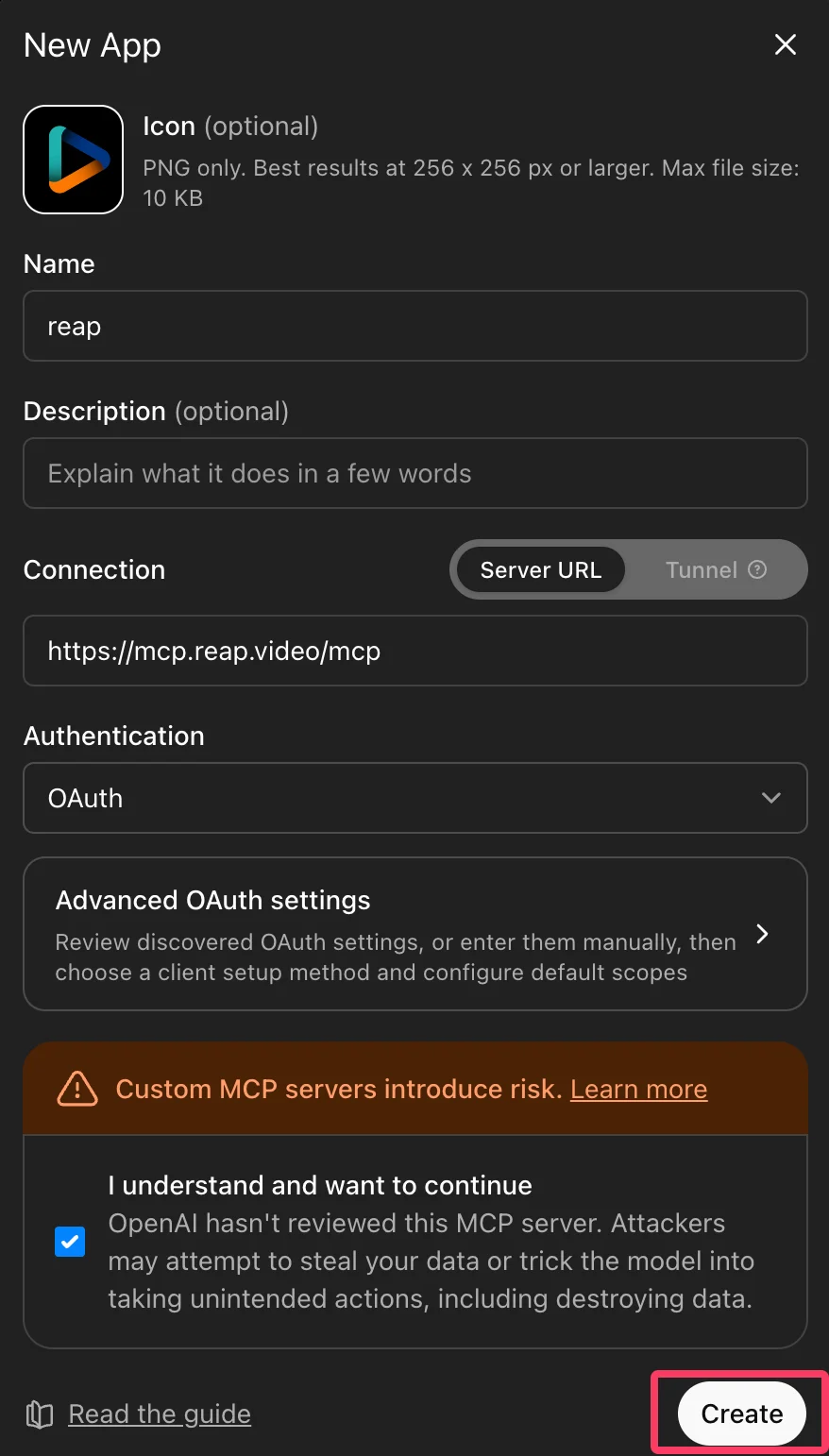 ChatGPT warns that custom MCP servers introduce risk, because OpenAI has not reviewed the server. Tick **I understand and want to continue**, then click **Create**. The **Create** button stays disabled until the box is ticked.
Publish the app for your workspace or enable it for yourself, depending on your ChatGPT plan and admin permissions.
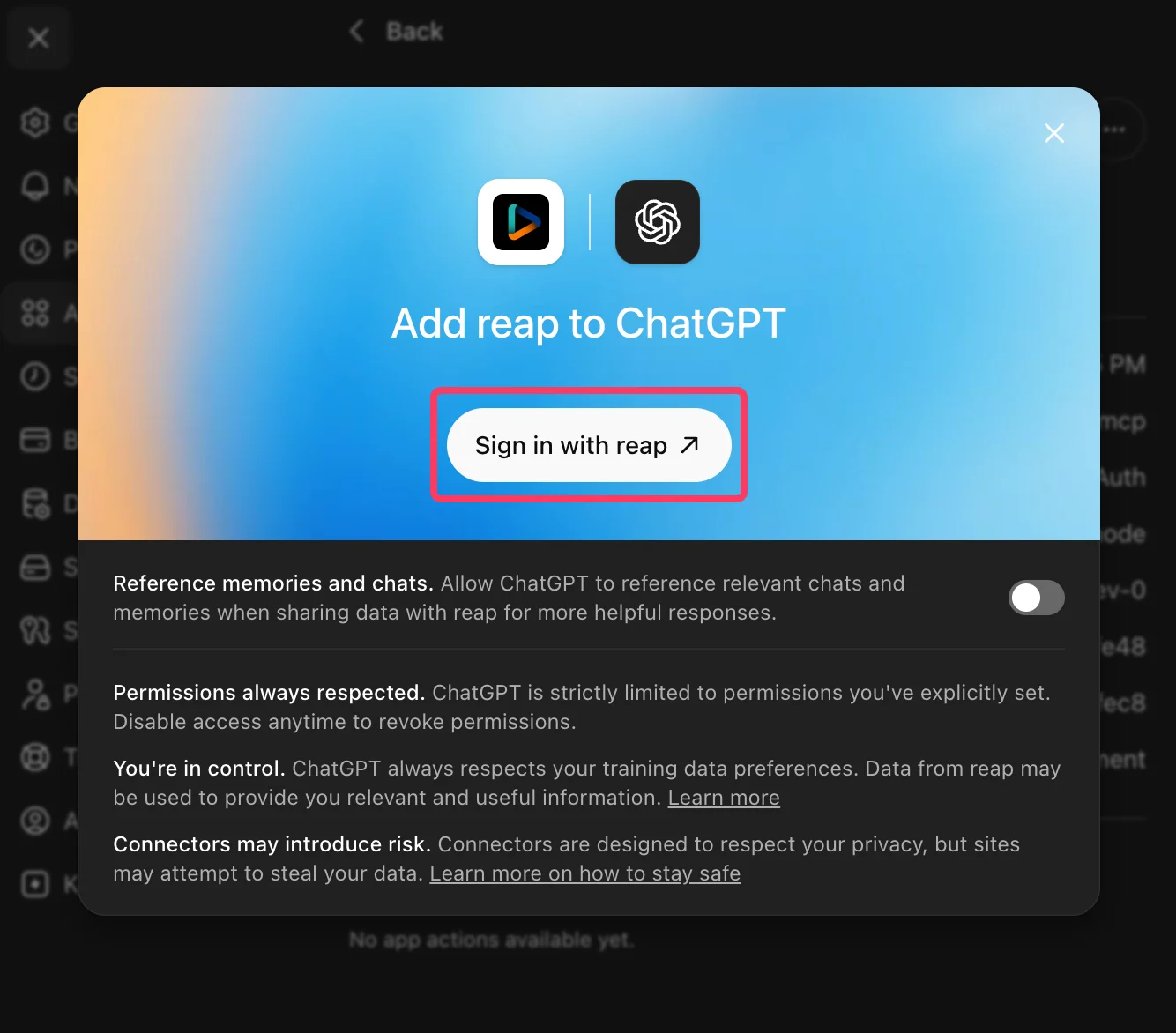
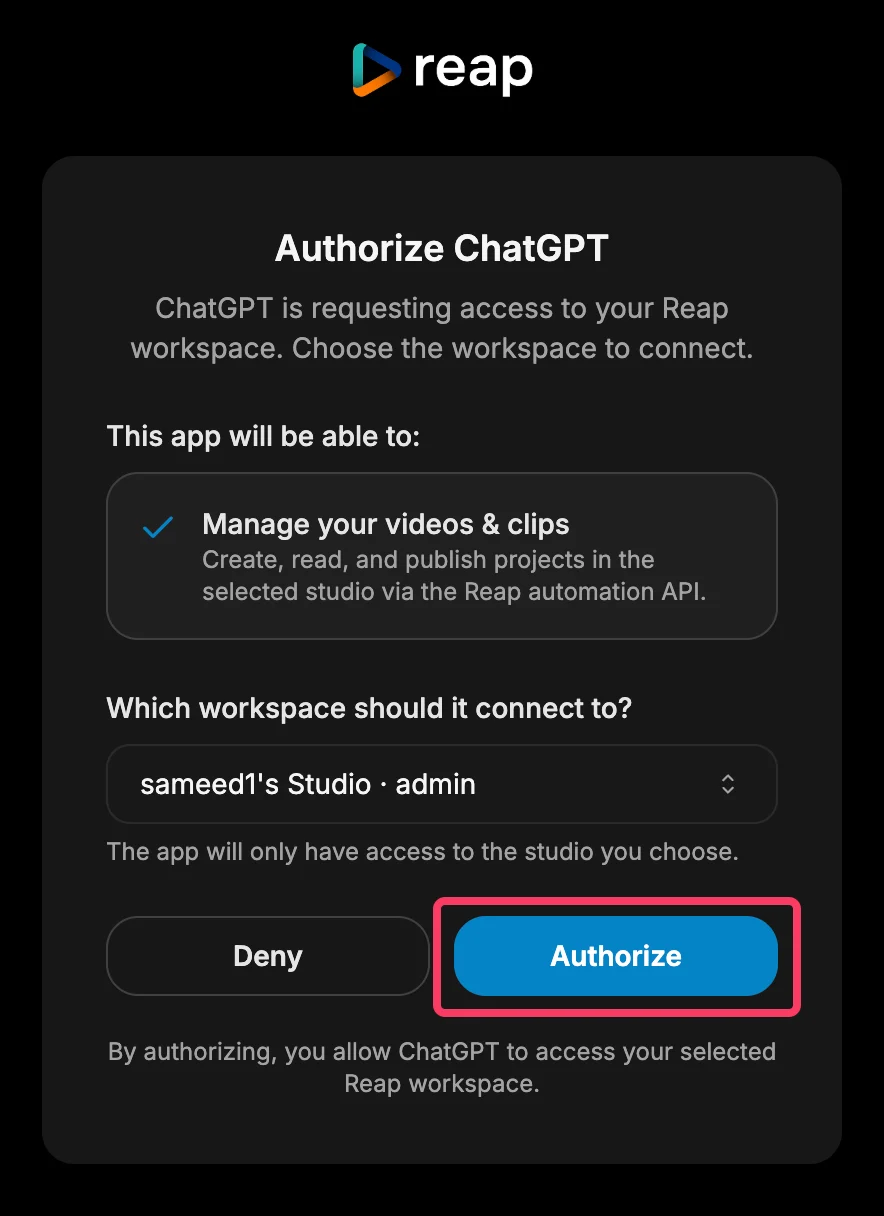
Click **Connect**, sign in to Reap, choose the workspace you want ChatGPT to use, and click **Authorize**.
ChatGPT warns that custom MCP servers introduce risk, because OpenAI has not reviewed the server. Tick **I understand and want to continue**, then click **Create**. The **Create** button stays disabled until the box is ticked.
Publish the app for your workspace or enable it for yourself, depending on your ChatGPT plan and admin permissions.
Click **Connect**, sign in to Reap, choose the workspace you want ChatGPT to use, and click **Authorize**.
 If you do not see Developer Mode or custom app options in ChatGPT, check your OpenAI plan and workspace permissions. Some settings are only available to workspace admins or supported paid plans.
Enable the Reap app for a conversation before asking ChatGPT to use it.
## Connect Codex
Use this when you want Reap available in Codex. Reap is added as a plugin, so there is nothing to install locally.
Use this link to land straight on the dialog: [Add a connector in Codex](https://chatgpt.com/plugins#settings/Connectors?create-connector=true\&redirectAfter=%2Fplugins).
Open the [Codex plugins page](https://chatgpt.com/plugins), then add a connector from **Settings** > **Connectors**.
Use these values:
If you do not see Developer Mode or custom app options in ChatGPT, check your OpenAI plan and workspace permissions. Some settings are only available to workspace admins or supported paid plans.
Enable the Reap app for a conversation before asking ChatGPT to use it.
## Connect Codex
Use this when you want Reap available in Codex. Reap is added as a plugin, so there is nothing to install locally.
Use this link to land straight on the dialog: [Add a connector in Codex](https://chatgpt.com/plugins#settings/Connectors?create-connector=true\&redirectAfter=%2Fplugins).
Open the [Codex plugins page](https://chatgpt.com/plugins), then add a connector from **Settings** > **Connectors**.
Use these values:
- Name:
Reap
- MCP Server URL:
[https://mcp.reap.video/mcp](https://mcp.reap.video/mcp)
- Authentication:
OAuth
The icon is optional. To show the Reap logo, upload this file in the **Icon** field: [Download Reap MCP icon](/images/help-center/reap-mcp-icon.png).
Sign in to Reap, choose the workspace you want Codex to use, and click **Authorize**. You are returned to the Codex plugins page when it succeeds.
On the plugins page, turn on the Reap plugin so Codex can use its tools.
## Confirm The Connection Works
In either tool, ask:
```text theme={"system"}
What Reap tools do you have access to?
```
If it lists the Reap tools, the connection is working.
## What You Can Ask For
```text theme={"system"}
Clip the best moments from this video and keep them under 60 seconds:
```
```text theme={"system"}
Add captions to this video and translate them into Spanish.
```
```text theme={"system"}
Reframe my last Reap upload to vertical 9:16 with the speaker centered.
```
## Troubleshooting
**ChatGPT**
* **No Developer Mode option?** Check your OpenAI plan and workspace permissions. Custom apps are limited to supported plans and admin roles.
* **App created but no tools?** Make sure the app is published or enabled for your account, and that it is turned on for the conversation.
**Codex**
* **Tools do not appear?** Make sure the Reap plugin is turned on for the session, then reload the plugins page.
* **Authorization never completes?** Open the connector dialog again and restart the sign-in. If the popup is blocked, allow popups for `chatgpt.com` and retry.
* **No option to add a connector?** Check your OpenAI plan and workspace permissions. Adding connectors can be limited to supported plans and admin roles.
**Both**
* **Wrong workspace?** Reconnect and pick the correct workspace on the Reap authorization screen.
* **Publishing fails?** Confirm your social accounts are connected in Reap.
## Learn More
* [Connect Reap MCP Server](/help-center/connect-reap-mcp-server)
* [Connect Reap MCP To Claude And Claude Code](/help-center/connect-reap-mcp-to-claude)
* [Reap MCP Guide](/help-center/reap-mcp-guide)
* [MCP API Reference](/api-reference/mcp)
* [Reap Dashboard](https://app.reap.video)