> ## Documentation Index
> Fetch the complete documentation index at: https://docs.reap.video/llms.txt
> Use this file to discover all available pages before exploring further.
# Connect Reap MCP Server
> Connect Reap to MCP-compatible AI tools so your agent can create clips, captions, reframes, dubbing projects, and published posts from your workspace.
> **For AI agents:** a documentation index is at [/llms.txt](/llms.txt). Every page is also available as markdown, just append `.md` to the URL.
## What Is Reap MCP?
Reap MCP lets AI tools connect to your Reap workspace through the Model Context Protocol (MCP). After you connect it, you can ask an AI agent to create clips, add captions, reframe videos, dub videos, check project status, retrieve clip links, and publish or schedule content from Reap.
You do not need to copy an API key into your AI tool. Reap MCP uses OAuth, so you sign in to Reap and choose the workspace the agent is allowed to use.
## Before You Start
* Your Reap workspace must be on a paid plan with API access enabled.
* Your AI tool must support remote MCP servers.
* You need access to the Reap workspace you want to connect.
* For ChatGPT, custom MCP app availability depends on your OpenAI plan and workspace settings.
## Reap MCP Server URL
Use this URL when your AI tool asks for the MCP server URL:
```text theme={"system"}
https://mcp.reap.video/mcp
```
## Connect Reap MCP To GPT
Use this option when you want to connect Reap MCP to ChatGPT as a custom MCP app.
### Custom Install: ChatGPT (Developer Mode)
Go to [ChatGPT connector settings](https://chatgpt.com/#settings/Connectors).
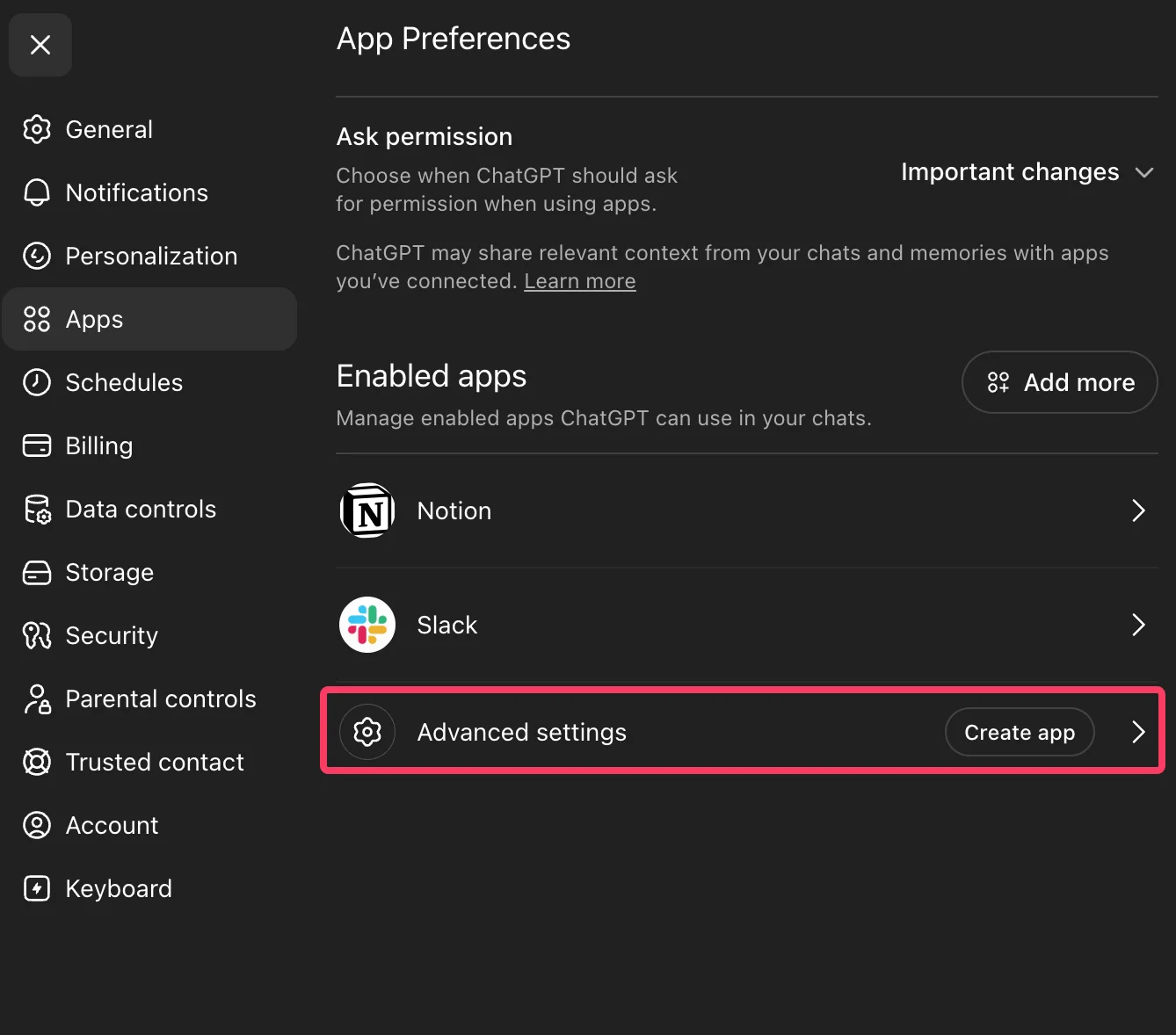
In **Apps**, open **Advanced settings**.
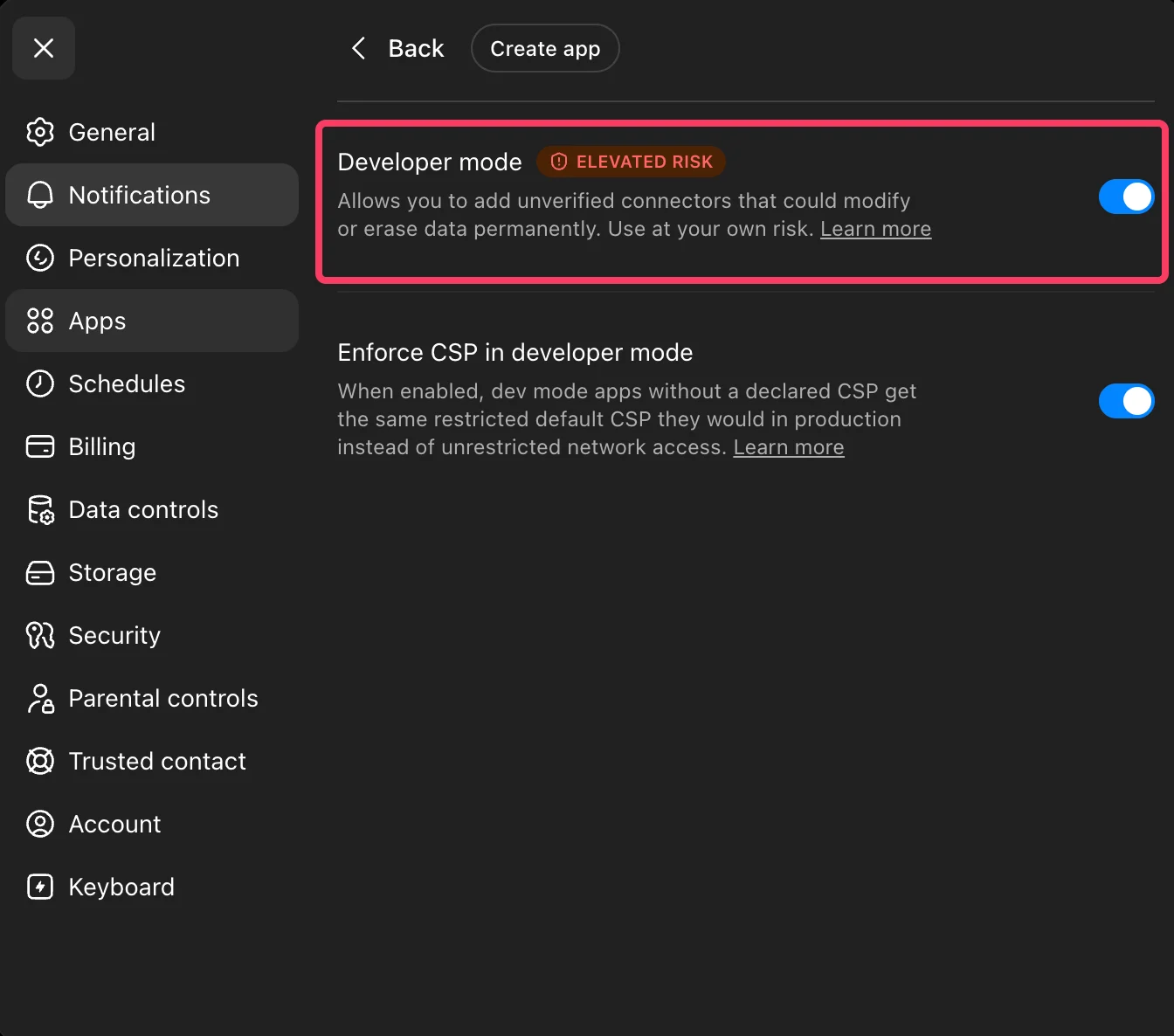
 Turn on **Developer Mode** so you can create a custom MCP app.
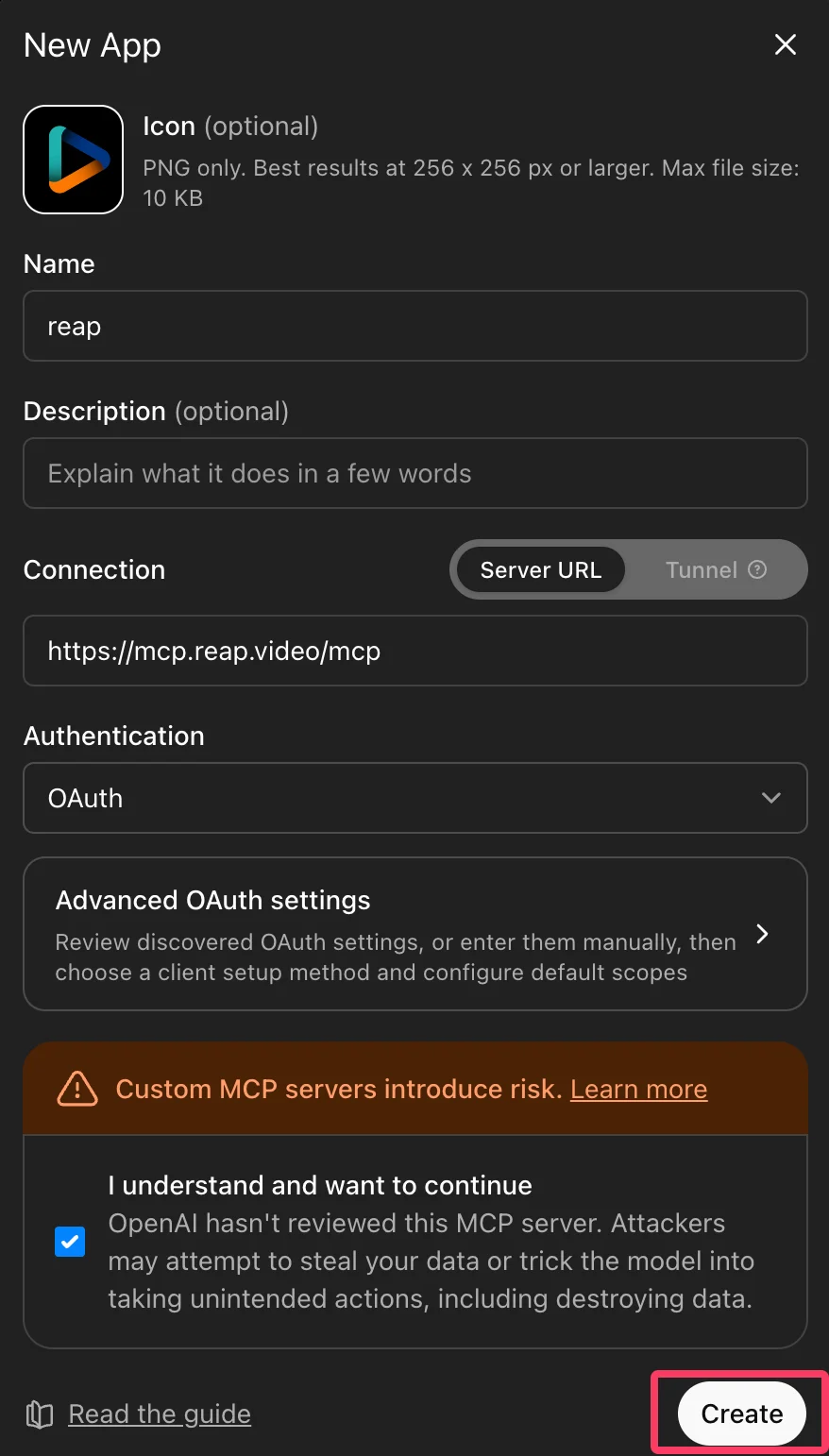
 Click **Create app** or **Add custom app**, depending on the option shown in your workspace.
Use these values:
Click **Create app** or **Add custom app**, depending on the option shown in your workspace.
Use these values:
- Name:
Reap
- MCP Server URL:
[https://mcp.reap.video/mcp](https://mcp.reap.video/mcp)
- Authentication:
OAuth
The icon is optional. If you want the Reap logo to appear in ChatGPT, download this icon and upload it in the **Icon** field: [Download Reap MCP icon](/images/help-center/reap-mcp-icon.png).
 Publish the app for your workspace or enable it for yourself, depending on your ChatGPT plan and admin permissions.
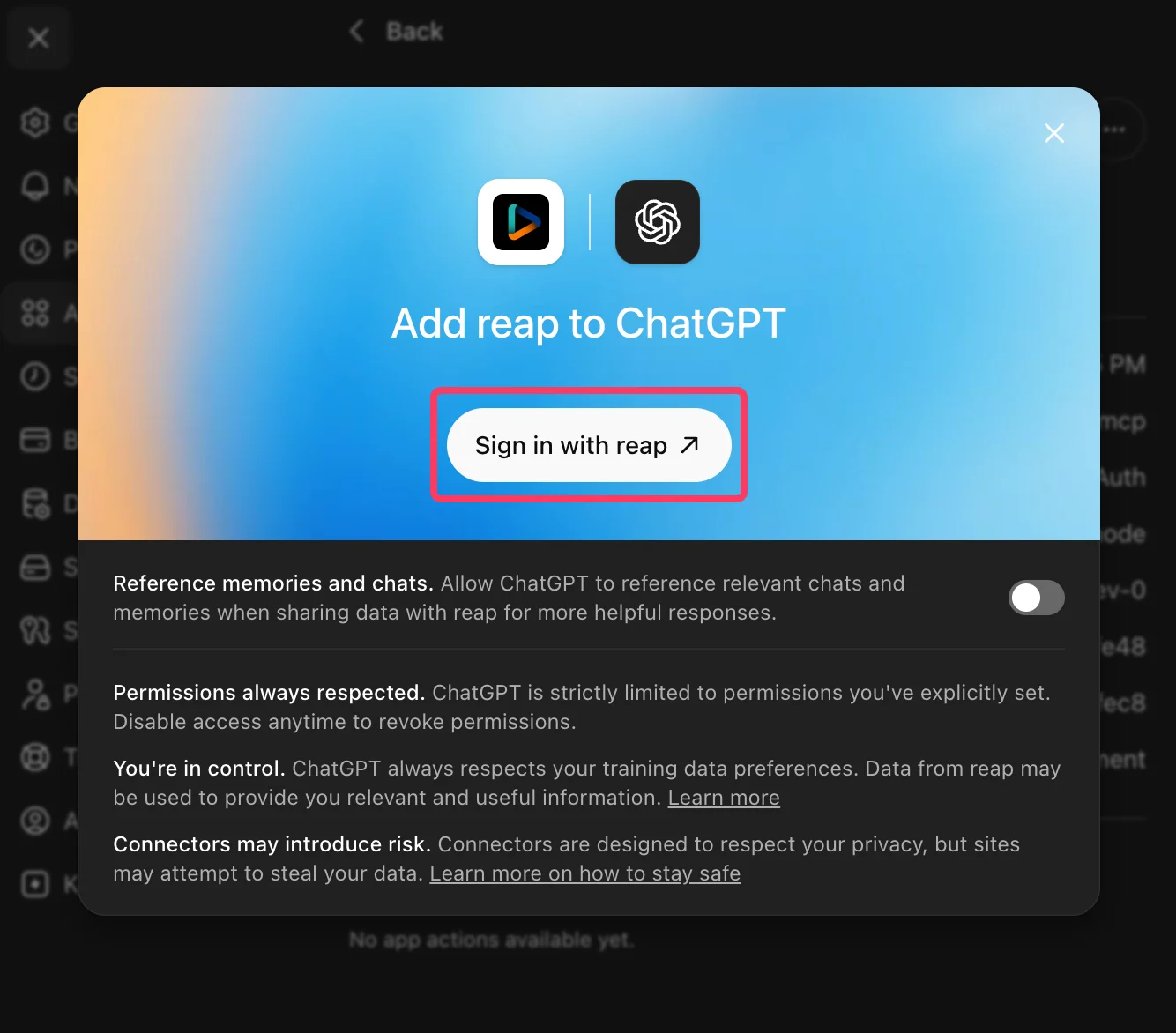
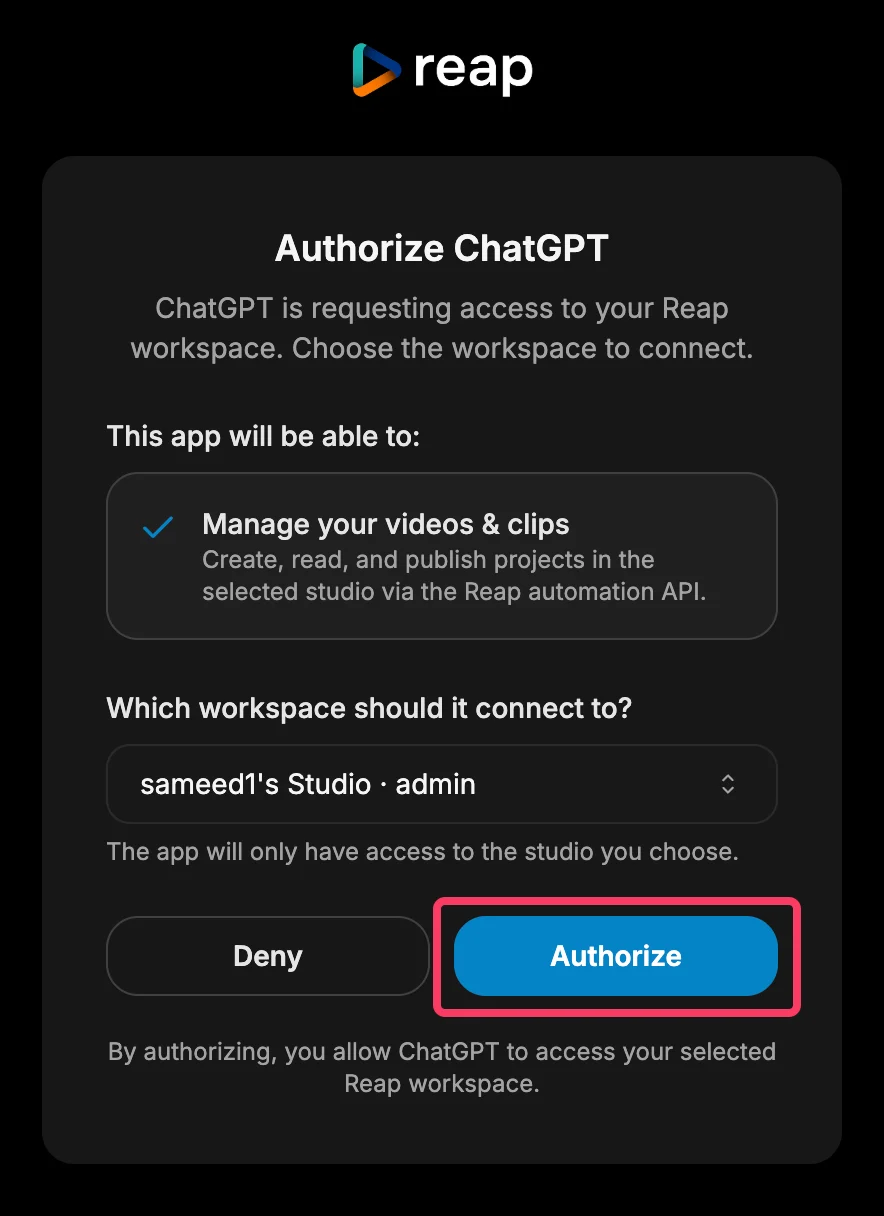
Click **Connect**, sign in to Reap, choose the workspace you want ChatGPT to use, and click **Authorize**.
Publish the app for your workspace or enable it for yourself, depending on your ChatGPT plan and admin permissions.
Click **Connect**, sign in to Reap, choose the workspace you want ChatGPT to use, and click **Authorize**.
 If you do not see Developer Mode or custom app options in ChatGPT, check your OpenAI plan and workspace permissions. Some settings are only available to workspace admins or supported paid plans.
## Connect Reap MCP To Claude
Use this option when you want Claude to access Reap from Claude chat.
Go to [Claude connector settings](https://claude.ai/settings/connectors).
If you do not see Developer Mode or custom app options in ChatGPT, check your OpenAI plan and workspace permissions. Some settings are only available to workspace admins or supported paid plans.
## Connect Reap MCP To Claude
Use this option when you want Claude to access Reap from Claude chat.
Go to [Claude connector settings](https://claude.ai/settings/connectors).
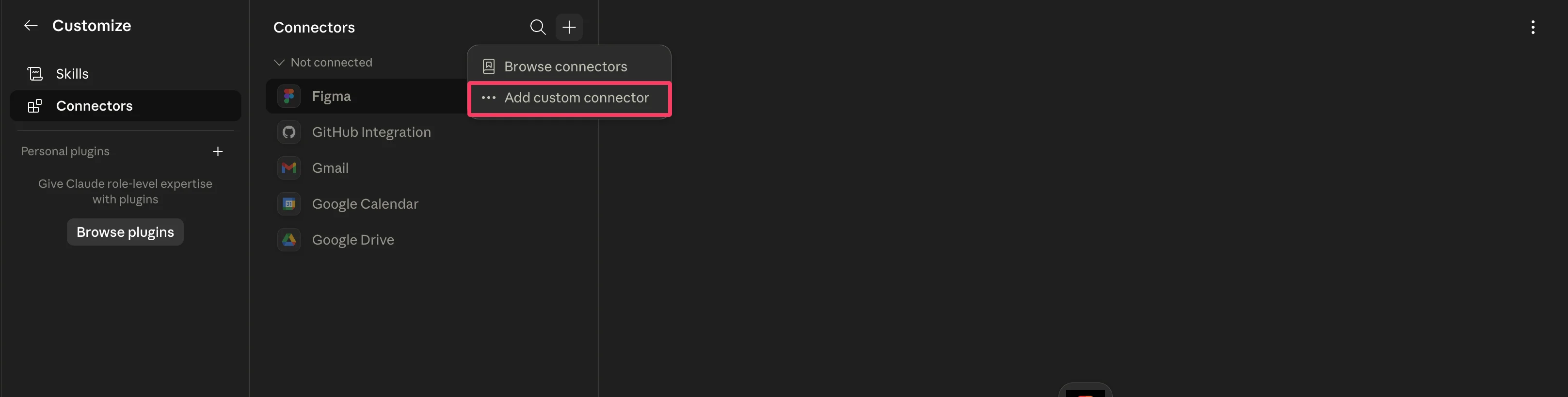
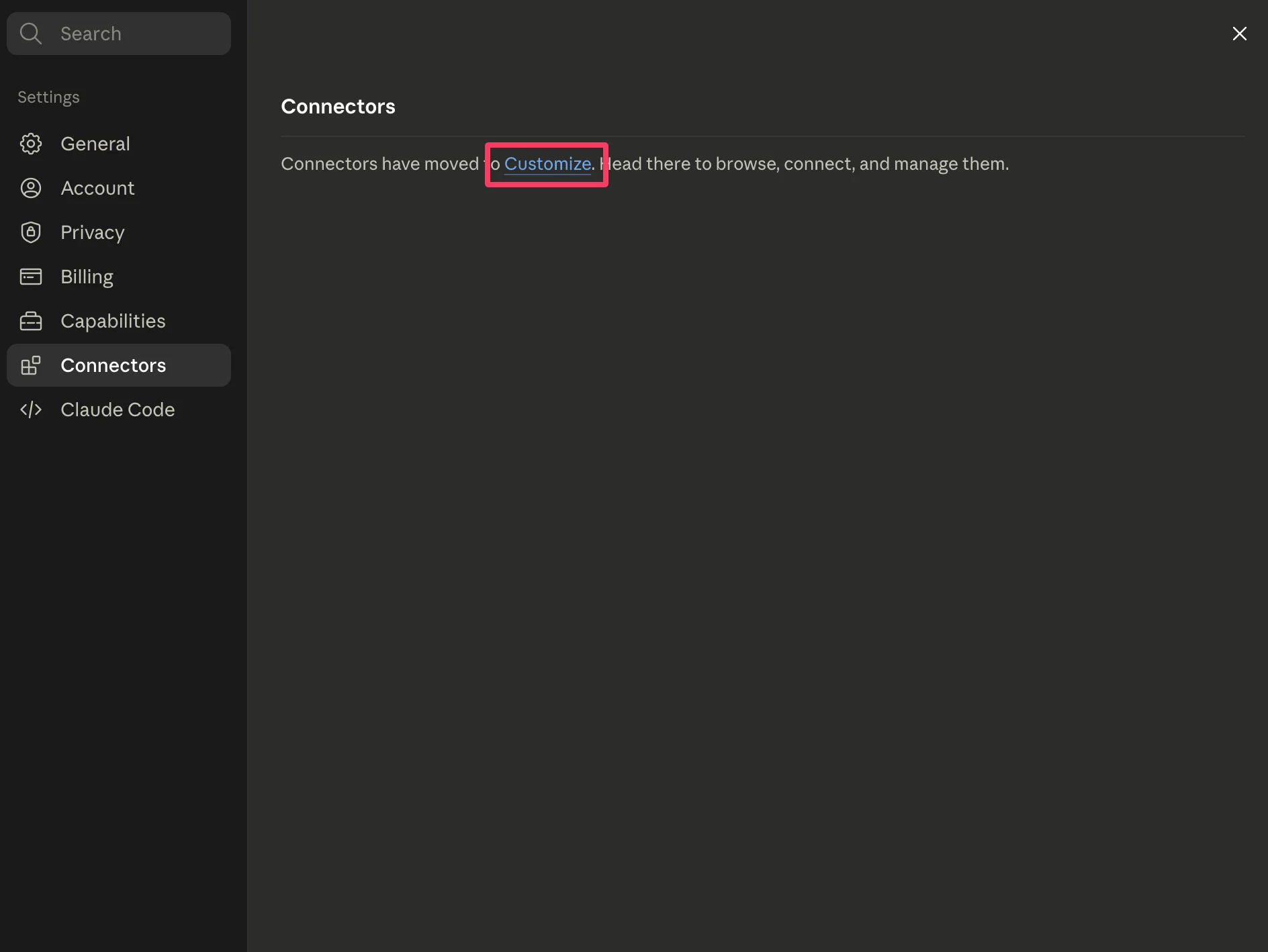 Click **Add custom connector**. In some Claude workspaces, this appears under **Customize** > **Connectors**.
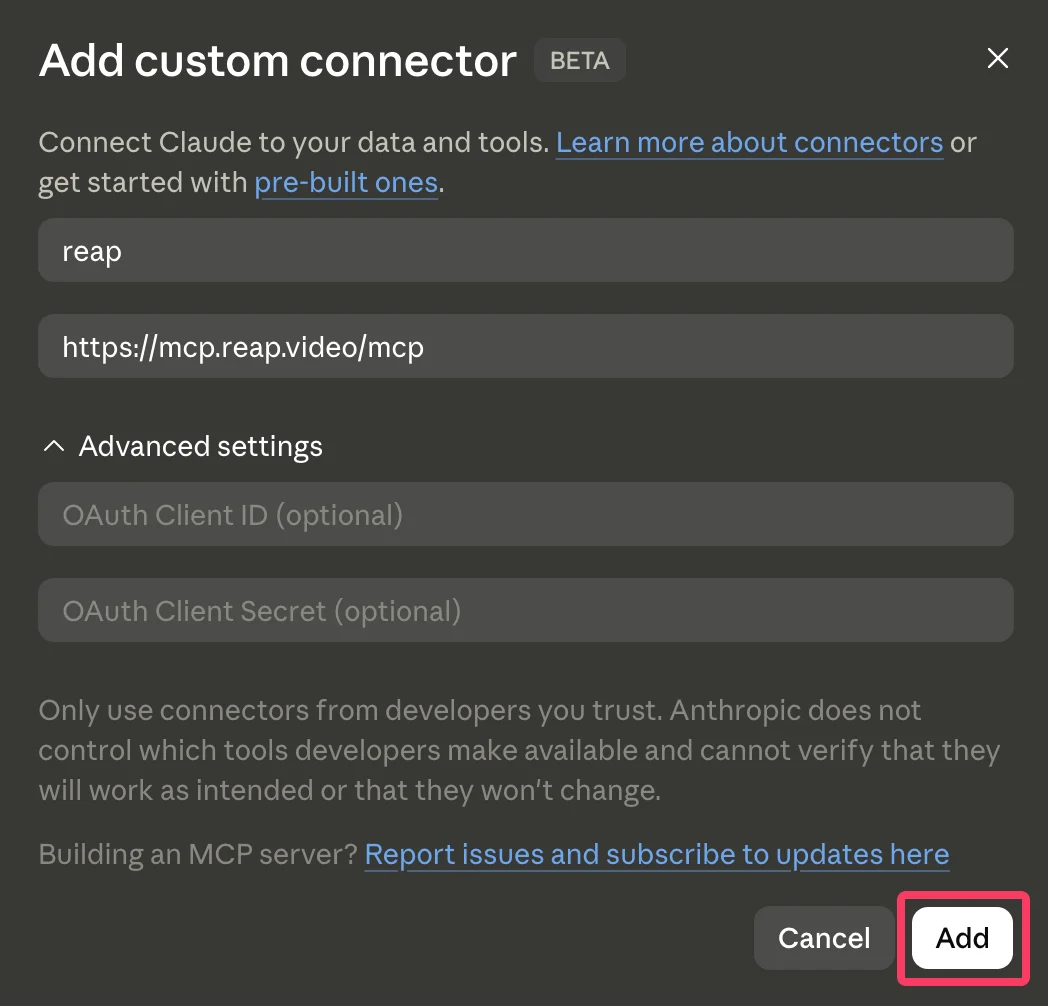
 Use these values:
- Name:
Reap
- MCP Server URL:
[https://mcp.reap.video/mcp](https://mcp.reap.video/mcp)
- Authentication:
OAuth
 In Claude, enable the Reap connector for the conversation before asking Claude to use it.
## Connect Reap MCP To Claude Code
If you use Claude Code, add Reap as an HTTP MCP server from your terminal:
```bash theme={"system"}
claude mcp add --transport http reap "https://mcp.reap.video/mcp"
```
Claude Code opens the Reap OAuth sign-in flow. Sign in, choose your workspace, authorize access, and return to Claude Code.
## Connect Reap MCP To Cursor Or VS Code
For Cursor, add Reap to `.cursor/mcp.json`. For VS Code, add it to `.vscode/mcp.json`. You can also use your global MCP settings if you want Reap available across projects.
```json theme={"system"}
{
"mcpServers": {
"reap": {
"url": "https://mcp.reap.video/mcp"
}
}
}
```
After saving the config, reload your editor if needed. The first time you use a Reap tool, your agent should start the Reap OAuth flow.
## Authorize Your Reap Workspace
No matter which agent you connect, the authorization flow works the same way:
Log in to the Reap account that has access to the workspace you want to connect.
Select the Reap workspace your agent is allowed to use.
Click **Authorize**. The agent only gets access to the workspace you selected.
Close the browser tab after authentication succeeds, then return to your agent and continue your workflow.
## Confirm The Connection Works
After connecting, try asking your agent:
```text theme={"system"}
What Reap tools do you have access to?
```
You can also try:
```text theme={"system"}
Show me my recent Reap projects.
```
If the agent can list Reap tools or access your selected workspace, the connection is working.
## What You Can Ask Your Agent To Do
Once connected, your agent can help with workflows like:
* Generate AI clips from a video upload or supported source URL.
* Add captions to a video.
* Reframe a video into portrait or square format.
* Dub a video into another language.
* Transcribe a video.
* Check project status and retrieve generated clip links.
* Publish or schedule clips to connected social platforms.
Publishing or scheduling content can affect public social accounts. Your agent should ask for confirmation before posting, scheduling, or changing published content.
## Things To Note
* Reap MCP uses OAuth, so you do not need to paste a Reap API key into your AI tool.
* Your agent only has access to the Reap workspace you authorize.
* You can revoke access later from your Reap dashboard.
* If your AI tool does not show Reap tools after connecting, restart the tool or reconnect the MCP server.
* If publishing tools fail, make sure your social accounts are connected in Reap.
## Troubleshooting
* Make sure your Reap plan includes API access.
* Confirm you authorized the correct workspace during OAuth.
* If the browser does not open automatically, copy the authorization URL from your agent and open it manually.
* If tools do not appear, reconnect the MCP server or restart your AI tool.
* If publishing fails, check that your social accounts are connected in Reap.
## Learn More
* [MCP API Reference](/api-reference/mcp)
* [Reap Agent Skills](/api-reference/agent-skills)
* [Connect Social Media Accounts](/help-center/how-to-connect-social-media-accounts)
* [Reap Dashboard](https://app.reap.video)
In Claude, enable the Reap connector for the conversation before asking Claude to use it.
## Connect Reap MCP To Claude Code
If you use Claude Code, add Reap as an HTTP MCP server from your terminal:
```bash theme={"system"}
claude mcp add --transport http reap "https://mcp.reap.video/mcp"
```
Claude Code opens the Reap OAuth sign-in flow. Sign in, choose your workspace, authorize access, and return to Claude Code.
## Connect Reap MCP To Cursor Or VS Code
For Cursor, add Reap to `.cursor/mcp.json`. For VS Code, add it to `.vscode/mcp.json`. You can also use your global MCP settings if you want Reap available across projects.
```json theme={"system"}
{
"mcpServers": {
"reap": {
"url": "https://mcp.reap.video/mcp"
}
}
}
```
After saving the config, reload your editor if needed. The first time you use a Reap tool, your agent should start the Reap OAuth flow.
## Authorize Your Reap Workspace
No matter which agent you connect, the authorization flow works the same way:
Log in to the Reap account that has access to the workspace you want to connect.
Select the Reap workspace your agent is allowed to use.
Click **Authorize**. The agent only gets access to the workspace you selected.
Close the browser tab after authentication succeeds, then return to your agent and continue your workflow.
## Confirm The Connection Works
After connecting, try asking your agent:
```text theme={"system"}
What Reap tools do you have access to?
```
You can also try:
```text theme={"system"}
Show me my recent Reap projects.
```
If the agent can list Reap tools or access your selected workspace, the connection is working.
## What You Can Ask Your Agent To Do
Once connected, your agent can help with workflows like:
* Generate AI clips from a video upload or supported source URL.
* Add captions to a video.
* Reframe a video into portrait or square format.
* Dub a video into another language.
* Transcribe a video.
* Check project status and retrieve generated clip links.
* Publish or schedule clips to connected social platforms.
Publishing or scheduling content can affect public social accounts. Your agent should ask for confirmation before posting, scheduling, or changing published content.
## Things To Note
* Reap MCP uses OAuth, so you do not need to paste a Reap API key into your AI tool.
* Your agent only has access to the Reap workspace you authorize.
* You can revoke access later from your Reap dashboard.
* If your AI tool does not show Reap tools after connecting, restart the tool or reconnect the MCP server.
* If publishing tools fail, make sure your social accounts are connected in Reap.
## Troubleshooting
* Make sure your Reap plan includes API access.
* Confirm you authorized the correct workspace during OAuth.
* If the browser does not open automatically, copy the authorization URL from your agent and open it manually.
* If tools do not appear, reconnect the MCP server or restart your AI tool.
* If publishing fails, check that your social accounts are connected in Reap.
## Learn More
* [MCP API Reference](/api-reference/mcp)
* [Reap Agent Skills](/api-reference/agent-skills)
* [Connect Social Media Accounts](/help-center/how-to-connect-social-media-accounts)
* [Reap Dashboard](https://app.reap.video)